
D-Link G403/E
D-Link EAGLE PRO AI N300 4G Smart Router (Model G403/E) User Manual
설치, 운영 및 유지 관리를 위한 종합 가이드
1. 서론
This manual provides detailed instructions for the installation, configuration, and operation of your D-Link EAGLE PRO AI N300 4G Smart Router, Model G403/E. Please read this manual thoroughly before using the device to ensure proper setup and optimal performance.
The D-Link G403/E is a versatile 4G LTE Router designed to provide high-speed internet access via a SIM card, offering Cat 4 150 Mbps LTE speeds and WiFi N 300 Mbps for your local network. It includes multiple LAN ports and a WAN port for flexible connectivity.
2. 패키지 내용
설치를 진행하기 전에 패키지에 다음 항목이 모두 포함되어 있는지 확인하십시오.
- D-Link EAGLE PRO AI N300 4G Smart Router (Model G403/E)
- 전원 어댑터
- 이더넷 케이블
- Quick Installation Guide (This manual serves as a detailed guide)
- SIM 카드 어댑터(해당되는 경우)
If any items are missing or damaged, please contact your retailer or D-Link support immediately.
3. 하드웨어 오버view
3.1 전면 패널

그림 3.1: 전면 view of the D-Link G403/E router, showing the D-Link logo and LED indicators for Power, Internet, Wi-Fi, and Signal Strength.
라우터의 전면 패널에는 실시간 상태 정보를 제공하는 여러 개의 LED 표시등이 있습니다.
- 전원 LED: 장치의 전원 상태를 나타냅니다.
- 인터넷 LED: Shows the status of the internet connection (4G LTE or WAN).
- 와이파이 LED: 무선 네트워크의 상태를 나타냅니다.
- 신호 강도 LED: Displays the strength of the 4G LTE signal.
3.2 후면 패널

그림 3.2: 후면 view of the D-Link G403/E router, displaying the SIM card slot, LAN ports, WAN port, power input, and power button.
The rear panel provides all the necessary connection ports and buttons:
- SIM 카드 슬롯: 여기에 4G LTE SIM 카드를 삽입하세요.
- LAN 포트(LAN1-LAN4): Four Fast Ethernet ports for connecting wired devices.
- WAN 포트: One Fast Ethernet port for connecting to a traditional broadband modem (e.g., DSL/Cable) if not using 4G LTE.
- 전원 입력 (12V 1A): 제공된 전원 어댑터를 여기에 연결하세요.
- 전원 켜기 / 끄기 버튼 : 라우터를 켜거나 끄는 데 사용됩니다.
- 재설정 버튼: 공장 기본 설정을 복원하는 작은 구멍 버튼입니다.
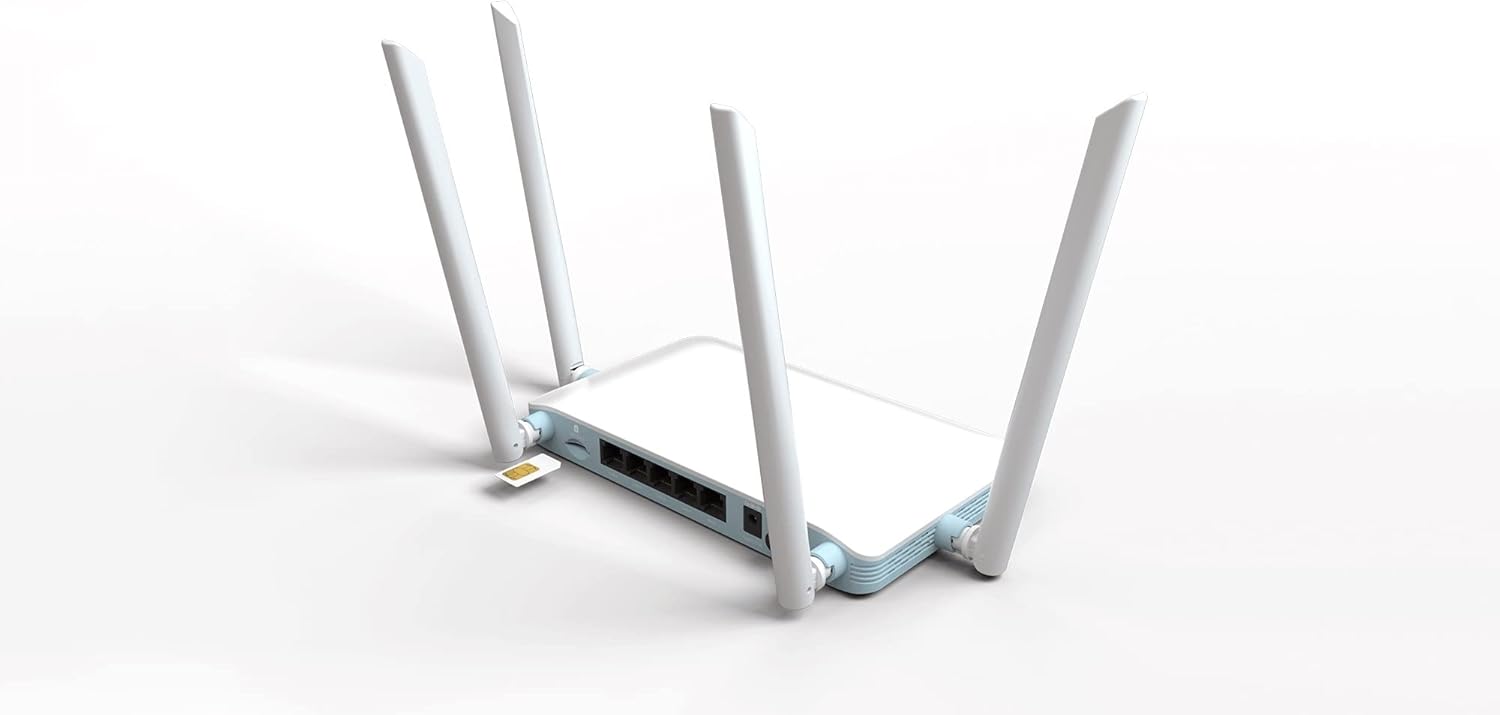
그림 3.3: 상세 view of the SIM card slot on the D-Link G403/E router, showing how a SIM card is inserted.
4. 설정 및 설치
4.1 SIM 카드 설치
- 라우터의 전원이 꺼져 있는지 확인하십시오.
- 후면 패널에서 SIM 카드 슬롯을 찾으세요.
- Insert your standard-sized 4G LTE SIM card into the slot with the gold contacts facing down and the notched corner oriented correctly. Push until it clicks into place. If using a Nano or Micro SIM, ensure it is placed in a suitable adapter before insertion.
- To remove the SIM card, gently push it in until it clicks, then release, and it will eject.
4.2 라우터 전원 켜기
- Connect the provided power adapter to the Power Input port on the rear of the router.
- Plug the other end of the power adapter into a wall outlet or power strip.
- Press the Power On/Off button. The Power LED on the front panel should illuminate.
4.3 초기 구성 (Web 상호 작용)
After powering on, you can access the router's web-based management interface for detailed configuration.
- 라우터에 연결:
- 유선 연결: Connect an Ethernet cable from one of the LAN ports (LAN1-LAN4) on the router to your computer's Ethernet port.
- 무선 연결: On your computer or mobile device, connect to the default Wi-Fi network name (SSID) printed on the label on the bottom of the router. The default Wi-Fi password (WPA/WPA2 Key) is also on this label.
- 접근하기 Web 인터페이스: 열기 web browser (e.g., Chrome, Firefox, Edge) and type the default IP address of the router into the address bar. This is typically
192.168.0.1or192.168.1.1. Refer to the label on the bottom of your router for the exact IP address and default login credentials. - 로그인: Enter the default username and password. The default username is usually
admin, and the password might beadmin,password, or blank. It is highly recommended to change the default password immediately after your first login for security purposes. - 설치 마법사를 따르세요: The first time you log in, a setup wizard may guide you through basic configurations such as changing the administrator password, setting up the time zone, and configuring your internet connection (4G LTE or WAN).
- Configure 4G LTE Connection: If using a SIM card, the router should automatically detect your mobile network and configure the APN settings. If not, you may need to manually enter the APN, username, and password provided by your mobile network operator.
- Wi-Fi 설정 구성: Change the default Wi-Fi network name (SSID) and password to something unique and secure.
5. 라우터 작동
5.1 인터넷 연결
Once configured, the router will establish an internet connection via the inserted 4G LTE SIM card or the WAN port. The Internet LED on the front panel will indicate the connection status.
- Green/Solid: 인터넷에 연결됨
- 빨간색/깜박임: No internet connection or connection error.
5.2 Wireless Network (Wi-Fi)
The router broadcasts a Wi-Fi signal for wireless devices. You can connect smartphones, tablets, laptops, and other Wi-Fi enabled devices to this network using the configured SSID and password.
- The router supports Wi-Fi N 300 Mbps, compatible with 802.11n, 802.11b, and 802.11g standards.
- For optimal performance, ensure your devices are within the router's Wi-Fi range.
5.3 Wired Network (LAN)
Use the four Fast Ethernet LAN ports to connect wired devices such as desktop computers, smart TVs, gaming consoles, or network printers for stable and high-speed local network access.
5.4 액세스 포인트 모드
The D-Link G403/E router supports Access Point (AP) mode. In AP mode, the device extends an existing wired network wirelessly. This is useful if you already have a router and want to add Wi-Fi capabilities or extend your current Wi-Fi coverage.
To configure AP mode, access the web interface and navigate to the operating mode settings. Connect the router's WAN port to a LAN port on your existing router.
6. 유지관리
6.1 펌웨어 업데이트
Regularly check for and install firmware updates from the official D-Link website. Firmware updates can improve performance, add new features, and address security vulnerabilities.
- Visit the D-Link support web귀하의 지역에 대한 사이트.
- 검색 your model (G403/E) and download the latest firmware.
- 라우터에 접근하세요 web interface and navigate to the firmware upgrade section (usually under System or Administration).
- 다운로드한 펌웨어 업로드 file 화면에 나타나는 지시사항을 따르십시오. 업데이트 과정 중에는 라우터의 전원을 끄지 마십시오.
6.2 라우터 배치
For optimal Wi-Fi coverage and signal strength, place the router in a central location, away from obstructions, metal objects, and devices that emit radio frequency interference (e.g., microwaves, cordless phones).
6.3 청소
라우터를 깨끗하고 먼지가 없는 상태로 유지하세요. 부드럽고 마른 천으로 외부를 닦으세요. 액체 세척제나 에어로졸은 사용하지 마세요.
6.4 공장 기본값으로 재설정
If you encounter persistent issues or forget your login password, you can reset the router to its factory default settings. This will erase all custom configurations.
- With the router powered on, locate the small pinhole Reset button on the rear panel.
- 클립이나 이와 유사한 뾰족한 물체를 사용하여 재설정 버튼을 약 10초 동안 누르고 계십시오.
- Release the button when the Power LED blinks or the router reboots.
- 라우터가 공장 초기 설정으로 재시작됩니다. 다시 설정해야 합니다.
7. 문제 해결
7.1 인터넷 연결 없음
- SIM 카드 확인: SIM 카드가 올바르게 삽입되었고 이동통신사에서 활성화되었는지 확인하세요.
- 신호 강도: Check the Signal Strength LEDs on the front panel. If the signal is weak, try repositioning the router.
- APN 설정: 라우터의 APN 설정이 올바른지 확인하십시오. web interface match those provided by your mobile network operator.
- WAN 연결: If using the WAN port, ensure the Ethernet cable is securely connected to your modem and the modem is working correctly.
- 재부팅: Power cycle the router (turn off, wait 10 seconds, turn on).
7.2 Wi-Fi 연결 문제
- Wi-Fi LED 확인: Ensure the Wi-Fi LED on the front panel is illuminated.
- 올바른 비밀번호: 올바른 Wi-Fi 비밀번호를 입력했는지 확인하세요.
- 신호 범위: Move closer to the router to check if it's a range issue.
- 간섭: 다른 전자 장치의 간섭을 줄이세요.
- 라우터 재부팅: 라우터를 재부팅하세요.
7.3 접근할 수 없습니다 Web 인터페이스
- IP 주소: 올바른 IP 주소를 사용하고 있는지 확인하십시오(예:
192.168.0.1). - 연결: Verify your device is connected to the router via Wi-Fi or Ethernet.
- 브라우저 캐시: 지우기 web 브라우저의 캐시와 쿠키를 확인하거나 다른 브라우저를 사용해 보세요.
- 방화벽/안티바이러스: 컴퓨터의 액세스를 차단할 수 있는 방화벽이나 바이러스 백신 소프트웨어를 일시적으로 비활성화하세요.
- 라우터 재설정: 다른 모든 방법이 실패하면 공장 초기화를 수행합니다(섹션 6.4 참조).
8. 사양
| 특징 | 설명 |
|---|---|
| 모델명 | EAGLE PRO AI N300 4G 스마트 라우터 |
| 모델 번호 | G403/E |
| 상표 | 디링크 |
| 4G LTE 카테고리 | Cat 4 (Up to 150 Mbps Download) |
| 와이파이 표준 | 802.11n/b/g (Wi-Fi N 300 Mbps) |
| 주파수 대역 클래스 | 듀얼 밴드 |
| 이더넷 포트 | 4 x LAN Fast Ethernet, 1 x WAN Fast Ethernet |
| 특별 기능 | 액세스 포인트 모드 |
| 치수(길이 x 너비 x 높이) | 26 x 25 x 6cm (대략) |
| 무게 | 290g(대략) |
| 전원 입력 | 12V 1A |
9. 보증 및 지원
For warranty information and technical support, please refer to the warranty card included with your product or visit the official D-Link support website for your region. The D-Link website provides up-to-date drivers, firmware, and troubleshooting resources.
D-Link Official Web대지: www.dlink.com
Please have your product model number (G403/E) and serial number ready when contacting support.
Ask a question about this manual
Ask about setup, troubleshooting, compatibility, parts, safety, or missing instructions. Manuals+ will review the question and use this page’s manual context to help answer it.