
소개
This manual provides instructions for the installation, operation, and maintenance of your Sitecom WLA-3001 AC450 Wi-Fi 5GHz USB Adapter. This device is designed to upgrade your notebook or desktop PC to the latest 802.11ac Wi-Fi technology, enabling fast and reliable 5GHz wireless connectivity.
- 802.11ac Technology: Utilizes the latest generation Wi-Fi standard for enhanced performance.
- 무선 속도: Offers a wireless throughput of up to 450 Mbps.
- 5GHz Adapter: Adds 5GHz band support to your device, reducing interference and improving speed.
- High-Performance Antenna: Features one internal high-performance antenna for optimal signal reception.
- Nano Design: Compact size allows it to remain permanently connected to your device without obstruction.
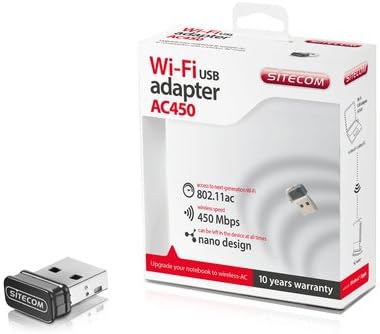
Image: The Sitecom WLA-3001 AC450 Wi-Fi 5GHz USB Adapter shown alongside its retail box, highlighting its compact size and packaging details.
설치 지침
Follow these steps to install and set up your Sitecom WLA-3001 USB Adapter.
1. 하드웨어 설치
- 어댑터를 삽입합니다: Carefully insert the Sitecom WLA-3001 USB Adapter into an available USB port on your laptop or desktop computer. Ensure it is fully seated.
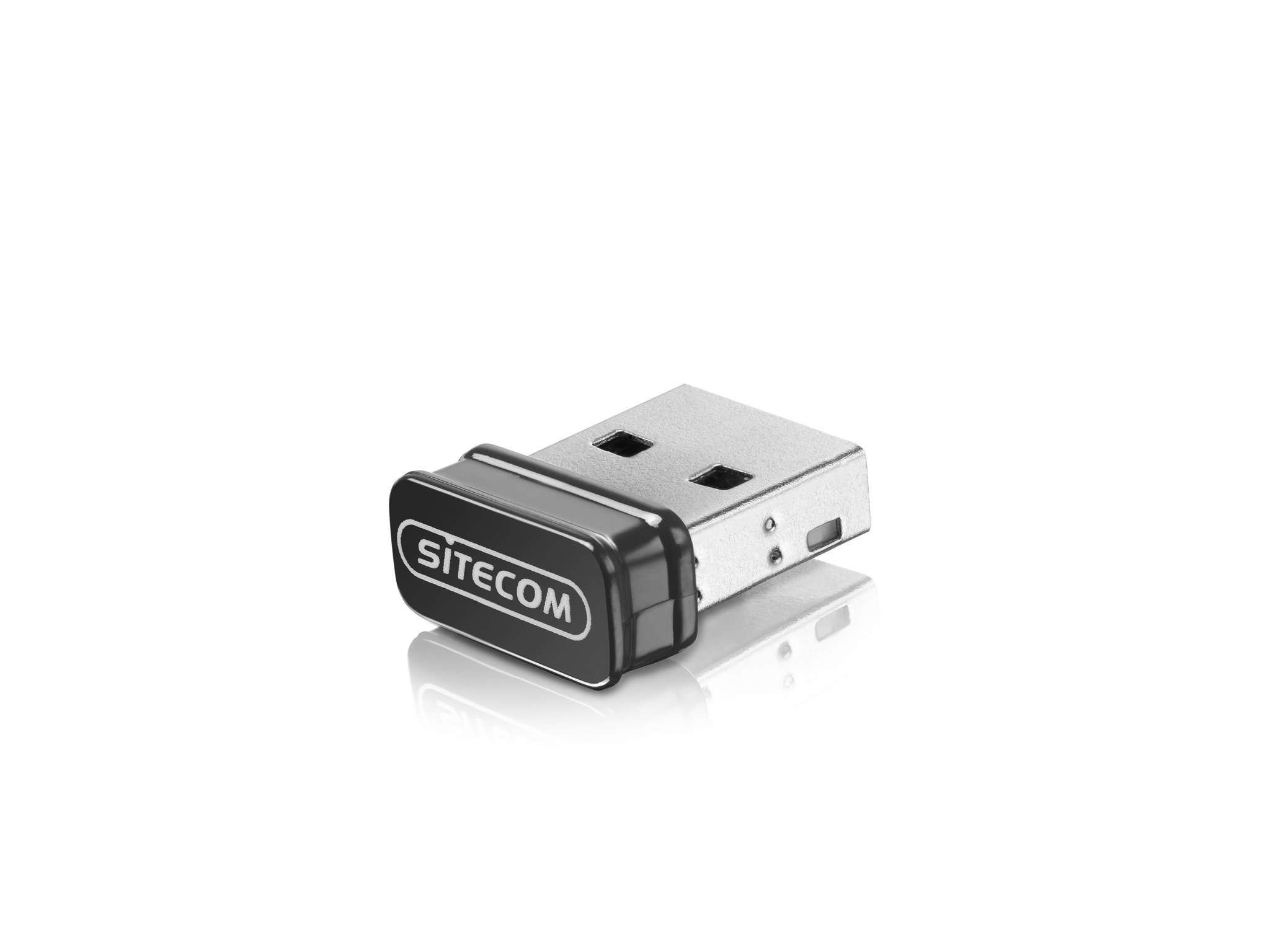
Image: The Sitecom WLA-3001 USB Adapter plugged into the side USB port of a laptop, showing its low-profile 설계.
2. 드라이버 설치
Upon inserting the adapter, your operating system may automatically detect and install the necessary drivers. If not, follow these steps:
- Check for Auto-Installation: Wait a few moments to see if your operating system (Windows, macOS, Linux) automatically installs the drivers. A notification usually appears upon successful installation.
- 수동 드라이버 설치: If drivers are not installed automatically, you may need to download them from the official Sitecom support web대지. 검색 'WLA-3001 drivers' on www.sitecom.com. Follow the on-screen instructions provided by the installer.
- 설치 확인: After installation, check your computer's Device Manager (Windows) or System Information (macOS) to ensure the adapter is recognized and functioning correctly.
3. Wi-Fi 네트워크에 연결하기
어댑터를 설치하면 무선 네트워크에 연결할 수 있습니다.
- 네트워크 설정에 액세스: 시스템 트레이(Windows) 또는 메뉴 막대(macOS)에 있는 Wi-Fi 아이콘을 클릭하세요.
- 네트워크 선택: A list of available wireless networks will appear. Select your desired 5GHz network (often indicated by '5G' or '5GHz' in the network name).
- 비밀번호를 입력하세요: If prompted, enter the network security key (Wi-Fi password) and click 'Connect'.
- 연결 확인: The adapter's LED indicator may light up or blink to confirm an active connection. Your device should now be connected to the internet via the 5GHz band.
작동 지침
The Sitecom WLA-3001 adapter operates automatically once connected and configured. Here are some operational considerations:
- 자동 재연결: The adapter is designed to automatically reconnect to previously configured networks when within range.
- 5GHz Band Advantage: Utilizing the 5GHz band provides higher speeds and less interference compared to the 2.4GHz band, ideal for streaming, gaming, and large file transfers. Ensure your wireless router also supports 5GHz.
- 신호 강도: For optimal performance, ensure your device is within a reasonable range of your 5GHz Wi-Fi router. While 5GHz offers higher speeds, its range can be shorter and more susceptible to obstacles than 2.4GHz.
유지
To ensure the longevity and optimal performance of your Sitecom WLA-3001 USB Adapter, consider the following maintenance tips:
- 깨끗하게 유지하십시오: 어댑터를 주기적으로 부드럽고 마른 천으로 닦아주세요. 액체 세척제나 용제 사용은 피해주세요.
- 손상으로부터 보호: Due to its nano design, it can remain in the USB port. However, be mindful of physical impacts that could damage the adapter or the USB port.
- 드라이버 업데이트 : Regularly check the Sitecom website for updated drivers. Keeping your drivers current can improve performance, stability, and security.
- 저장: If removing the adapter for storage, keep it in a safe, dry place away from extreme temperatures.
문제 해결
If you encounter issues with your Sitecom WLA-3001 USB Adapter, try the following solutions:
- 어댑터가 감지되지 않음:
- 어댑터가 USB 포트에 완전히 삽입되었는지 확인하세요.
- 컴퓨터의 다른 USB 포트를 사용해 보십시오.
- 컴퓨터를 다시 시작하세요.
- Check Device Manager (Windows) or System Information (macOS) to see if the adapter is listed. If there's an error, reinstall the drivers.
- Wi-Fi에 연결할 수 없습니다:
- 와이파이 공유기의 전원이 켜져 있고 신호를 송출하고 있는지 확인하십시오.
- 올바른 네트워크를 선택하고 올바른 비밀번호를 입력했는지 확인하십시오.
- Wi-Fi 라우터와 모뎀을 다시 시작하세요.
- 다른 기기가 동일한 Wi-Fi 네트워크에 연결할 수 있는지 확인하세요.
- Confirm your router supports 5GHz Wi-Fi and that the 5GHz band is enabled.
- 느린 연결 속도:
- Ensure you are connected to a 5GHz network, not a 2.4GHz network.
- 와이파이 신호 강도를 높이려면 와이파이 공유기에 더 가까이 이동하세요.
- 어댑터와 라우터 사이에 벽이나 큰 가구와 같은 물리적 장애물을 최소화하십시오.
- 어댑터 드라이버를 최신 버전으로 업데이트하세요.
- 네트워크에서 대역폭을 소모하는 다른 장치가 있는지 확인하십시오.
- 잦은 연결 끊김:
- 어댑터가 USB 포트에 제대로 꽂혀 있는지 확인하십시오.
- 드라이버 업데이트를 확인하세요.
- Consider changing the Wi-Fi channel on your router to avoid interference from neighboring networks.
- Ensure your computer's power management settings are not turning off the USB port to save power.
명세서
| 특징 | 세부 사항 |
|---|---|
| 상표 | 사이트컴 |
| 모델 번호 | WLA-3001 |
| 시리즈 | AC450 Wi-Fi 5GHz USB Adapter |
| 색상 | 검은색 |
| 무선 기술 유형 | 802.11a, 802.11n, 802.11ac |
| 데이터 링크 프로토콜 | IEEE 802.11a, IEEE 802.11ac, IEEE 802.11n, USB |
| 데이터 전송 속도 | 450 Mbps (Wireless), 480 Mbps (USB) |
| 하드웨어 인터페이스 | USB |
| 블루투스 | 아니요 |
| 품목 치수(L x W x H) | 5.2 x 13.1 x 15.5 cm (Note: These dimensions seem unusually large for a nano adapter and might refer to packaging or a different product. The adapter itself is very small.) |
| 첫 번째 가능한 날짜 | 4년 2014월 XNUMX일 |
보증 정보
The Sitecom WLA-3001 AC450 Wi-Fi 5GHz USB Adapter comes with a manufacturer's warranty of 2 years from the date of purchase. Please retain your proof of purchase for warranty claims. The warranty covers defects in materials and workmanship under normal use. It does not cover damage caused by misuse, accidents, unauthorized modifications, or external factors.
For detailed warranty terms and conditions, please refer to the official Sitecom web사이트를 방문하거나 고객 지원팀에 문의하세요.
지원하다
For further assistance, technical support, or to download the latest drivers and firmware for your Sitecom WLA-3001 USB Adapter, please visit the official Sitecom support web대지:
You may also find frequently asked questions (FAQs) and additional resources on their web대지.