
1. 서론
The Brother DCP-J132W is a compact and versatile multifunction inkjet printer designed for home and small office use. It offers printing, scanning, and copying functionalities, along with wireless connectivity for convenient use from various devices. This manual provides essential information to help you get the most out of your printer.
2. 안전 정보
Please read these safety instructions carefully before using the printer to prevent injury and damage to the machine.
- Always place the printer on a flat, stable surface.
- Do not block or cover the ventilation slots.
- 프린터와 함께 제공된 전원 코드만 사용하세요.
- 프린터를 물이나 과도한 습기에 노출시키지 마십시오.
- 잉크 카트리지를 어린이의 손이 닿지 않는 곳에 보관하세요.
- 청소나 유지관리를 하기 전에 프린터의 플러그를 전원 콘센트에서 뽑으세요.
3. 상자 안에 무엇이 들어있나요?
모든 구성품이 포장에 들어 있는지 확인하세요.
- Brother DCP-J132W Multifunction Printer
- Ink Cartridges (Starter Set)
- 전원 코드
- 설치 CD-ROM
- 빠른 설치 안내서
Note: A USB cable is not typically included and may need to be purchased separately if you prefer a wired connection.
4. 설정
4.1 풀기 및 초기 배치
- 프린터를 포장에서 꺼내고 모든 보호 테이프와 포장재를 제거하세요.
- 프린터를 전원 콘센트 근처의 안정적이고 평평한 곳에 놓으십시오.
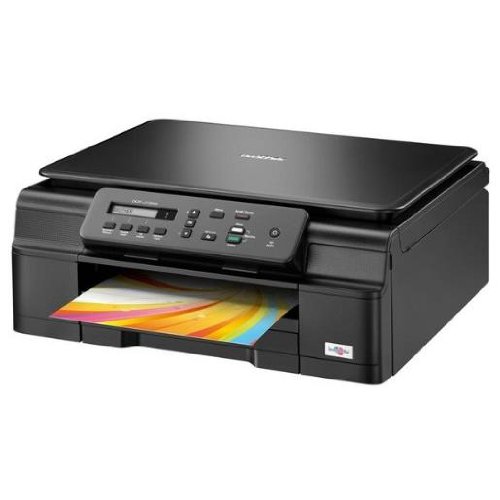
그림 4.1: 전면 view of the Brother DCP-J132W printer, showing the paper output tray with a colorful document.
4.2 잉크 카트리지 설치
- Open the ink cartridge cover located on the front of the printer.
- Unpack each ink cartridge (Black, Cyan, Magenta, Yellow).
- Insert each cartridge into its corresponding slot, pressing down until it clicks into place.
- 잉크 카트리지 덮개를 닫으세요. 프린터에서 잉크 충전 과정이 시작됩니다.
4.3 용지 적재
- 프린터에서 용지함을 완전히 빼내십시오.
- Adjust the paper guides to fit the paper size you are loading (e.g., A4).
- Load paper into the tray, print side down. Do not overfill.
- 용지함이 딸깍 소리가 나면서 제자리에 고정될 때까지 프린터 안쪽으로 살살 밀어 넣으세요.
4.4 전원 연결
- 전원 코드를 프린터의 전원 입력 단자에 연결합니다.
- 전원 코드의 다른 쪽 끝을 벽면 콘센트에 꽂습니다.
- 전원 버튼을 눌러 프린터를 켭니다.
4.5 소프트웨어 설치 및 네트워크 연결
Install the printer drivers and software from the included CD-ROM or download the latest versions from the official Brother support web사이트. 화면의 지시에 따라 설치하세요.
- 무선 설정 : During software installation, select the wireless connection option and follow the prompts to connect your printer to your Wi-Fi network. You may need your network SSID and password.
- USB 연결: If using a USB cable (not included), connect it to the printer and your computer when prompted by the installation software.

그림 4.2: 각도 view of the Brother DCP-J132W printer, highlighting its compact design and control panel.
5. 프린터 작동
5.1 문서 인쇄
- 컴퓨터나 모바일 기기에서 인쇄하려는 문서나 이미지를 엽니다.
- 애플리케이션 메뉴에서 "인쇄"를 선택하세요.
- Choose "Brother DCP-J132W" as your printer.
- Adjust print settings (e.g., paper size, color/grayscale, number of copies) as needed.
- "인쇄"를 클릭하세요.
5.2 문서 스캔
- Place the document face down on the scanner glass, aligning it with the guide marks.
- 스캐너 덮개를 닫습니다.
- On your computer, open the Brother ControlCenter software or a scanning application.
- Select "Scan" and choose your desired scan settings (e.g., resolution, color mode, destination).
- 스캔을 시작하려면 "스캔"을 클릭하세요.
5.3 문서 복사
- 스캐너 유리에 문서를 뒤집어 놓습니다.
- 프린터 제어판에서 "복사" 버튼을 누르세요.
- Use the arrow keys to select the number of copies or other settings (e.g., quality).
- Press "Start" (Color or Black & White) to begin copying.
6. 유지관리
6.1 잉크 카트리지 교체
When an ink cartridge is low or empty, a message will appear on the printer's display or your computer. Use genuine Brother LC121 or LC123 series ink cartridges for optimal performance.
- 잉크 카트리지 덮개를 엽니 다.
- 빈 카트리지의 분리 레버를 눌러 카트리지를 제거하십시오.
- Unpack a new cartridge and insert it firmly into the correct slot until it clicks.
- 잉크 카트리지 덮개를 닫습니다.
6.2 프린트 헤드 청소
If print quality declines (e.g., missing lines, streaking), perform a print head cleaning from the printer's control panel or through the printer driver software on your computer. Refer to the on-screen instructions for the cleaning procedure.
6.3 스캐너 유리 청소
To ensure clear scans and copies, regularly clean the scanner glass with a soft, lint-free cloth moistened with a non-abrasive glass cleaner. Avoid spraying cleaner directly onto the glass.
7. 문제 해결
This section addresses common issues you might encounter with your Brother DCP-J132W printer.
- 프린터 전원이 켜지지 않음:
- 전원 코드가 프린터와 작동하는 전기 콘센트에 모두 단단히 연결되어 있는지 확인하세요.
- Try plugging another device into the outlet to confirm it has power.
- 용지 걸림:
- Carefully open all covers and remove any jammed paper following the instructions on the printer's display or in the full user guide.
- 용지함에 용지가 올바르게, 그리고 과도하게 채워지지 않았는지 확인하십시오.
- 인쇄 품질 불량:
- 잉크 수준을 확인하고 잉크가 부족하거나 비어 있는 카트리지는 교체하세요.
- Perform a print head cleaning and alignment from the printer's maintenance menu.
- 인쇄 설정에 맞는 용지를 사용하고 있는지 확인하십시오.
- 무선 연결 문제:
- 프린터가 Wi-Fi 라우터의 범위 내에 있는지 확인하십시오.
- 라우터, 컴퓨터, 프린터를 재시작하세요.
- Re-run the wireless setup utility from the printer's control panel or the Brother software.
- 와이파이 비밀번호를 정확하게 입력했는지 확인하세요.
For more detailed troubleshooting, refer to the comprehensive user manual available on the Brother support web대지.
8. 사양
| 특징 | 세부 사항 |
|---|---|
| 상표 | 형제 |
| 모델명 | DCPJ132W |
| 연결 기술 | 와이파이, USB |
| 프린터 출력 | 색상 |
| 최대 인쇄 속도(컬러) | 분당 27페이지 |
| 최대 인쇄 속도(흑백) | 분당 27페이지 |
| 최대 인쇄 해상도(컬러) | 1200 x 1200dpi |
| 최대 인쇄 해상도(흑백) | 1200 x 1200dpi |
| 제품 크기(DxWxH) | 16.1P x 41l x 16.1H cm |
| Max Supported Paper Size | A4 |
| Printing Media Support | Plain paper, Glossy photo paper, Transparencies |
| 스캐너 유형 | 플랫베드 |
| 스캐너 해상도 | 2400dpi |
| 양면 인쇄 | 오토매틱 |
| 호환 가능한 카트리지 | LC121BK/C/M/Y & LC123BK/C/M/Y |
| 최대 입력 시트 용량 | 250 |
9. 보증 및 지원
9.1 보증 정보
The Brother DCP-J132W typically comes with a manufacturer's warranty. Please refer to the warranty card included with your product or visit the official Brother website for specific terms and conditions applicable in your region. The availability of spare parts in the EU is guaranteed for 1 year.
9.2 고객 지원
For technical assistance, driver downloads, or further information, please visit the official Brother support web사이트에서 FAQ, 문제 해결 가이드, 고객 서비스 연락처 정보를 확인하실 수 있습니다.
형제 지원 Web대지: www.brother.eu/support