
1. 서론
This manual provides essential information for the proper setup, operation, and maintenance of your Honeywell 7580G Genesis USB Kit Barcode Scanner. Please read this guide thoroughly before using the device to ensure optimal performance and longevity.
2. 설정
2.1 풀기
모든 구성품을 포장에서 조심스럽게 꺼내세요. 다음 품목이 모두 있는지 확인하세요.
- Honeywell 7580G Genesis Barcode Scanner
- USB Type A 3M Cable (CBL-500-300-S00)
- 선적 서류 비치
2.2 스캐너 연결
The Honeywell 7580G Genesis scanner connects to your host device (desktop or laptop) via a standard USB cable. No external power adapter is typically required as the scanner draws power directly from the USB port.
- Connect the smaller end of the USB cable to the USB port located at the base of the Honeywell 7580G Genesis scanner.
- Connect the larger USB Type A end of the cable to an available USB port on your computer.
- Upon successful connection, the scanner will typically emit a power-on beep and its indicator lights will activate, signaling it is ready for use. Most operating systems will automatically detect and install the necessary drivers for the scanner to function as a keyboard wedge (HID-POS).
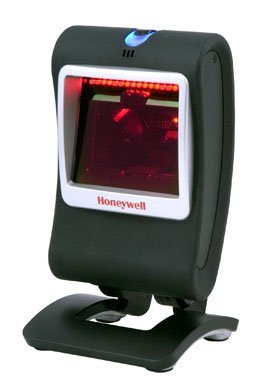
Image: The Honeywell 7580G Genesis barcode scanner shown with its USB cable connected, ready for integration with a computer system.
3. 사용 설명서
3.1 기본 스캐닝
The 7580G Genesis is designed for intuitive, hands-free scanning. It can also be picked up for handheld operation.
- 위치: Place the item with the barcode facing the scanner's window. For optimal performance, ensure the barcode is within the scanner's field of view.
- 스캐닝: The scanner will automatically detect and read the barcode. A successful scan is typically indicated by an audible beep and/or a visual confirmation light.
- 데이터 전송: The decoded barcode data will be transmitted to your computer as if it were typed on a keyboard, appearing in any active text field.
3.2 지원되는 기호
The Honeywell 7580G Genesis scanner supports a wide range of 1D, PDF417, and 2D barcode symbologies, including but not limited to:
- 1D 바코드: UPC/EAN, 코드 39, 코드 128, 인터리브드 2/5 등
- PDF417: Standard PDF417 codes.
- 2D 바코드: Data Matrix, QR Code, Aztec, etc.
3.3 Scanning Feedback
The scanner provides feedback to indicate its status and successful scans:
- 가청 경고음: A short beep typically indicates a successful barcode read.
- 시각적 표시기: The scanner may have LED indicators that change color or flash to confirm a successful scan or indicate an error. Refer to the full product documentation for specific indicator patterns.
4. 유지관리
4.1 스캐너 청소
정기적으로 청소하면 최적의 스캐닝 성능을 유지하는 데 도움이 됩니다.
- 외부: 부드럽고 깨끗한 천을 사용하세요.ampened with water or a mild cleaning solution to wipe the exterior of the scanner. Avoid abrasive cleaners or solvents.
- 스캔 창: Gently wipe the scan window with a soft, lint-free cloth. Do not use harsh chemicals or scratch the window, as this can impair scanning accuracy.
4.2 보관
사용하지 않을 때는 스캐너를 극한 온도와 직사광선을 피해 깨끗하고 건조한 곳에 보관하세요.
5. 문제 해결
If you encounter issues with your Honeywell 7580G Genesis scanner, refer to the following common problems and solutions:
| 문제 | 가능한 원인 | 해결책 |
|---|---|---|
| 스캐너의 전원이 켜지지 않습니다. | USB 케이블이 제대로 연결되지 않았거나 USB 포트에 결함이 있습니다. | USB 케이블이 스캐너와 컴퓨터에 제대로 연결되어 있는지 확인하십시오. 컴퓨터의 다른 USB 포트를 사용해 보십시오. |
| 스캐너가 바코드를 읽지 못합니다. | Barcode damaged, incorrect symbology enabled, or scanner window dirty. | Ensure the barcode is not damaged. Verify the barcode type is supported. Clean the scanner window as described in Section 4.1. |
| 스캔한 데이터가 잘못 표시됩니다. | Incorrect keyboard layout setting on the computer. | Ensure your computer's keyboard layout matches the region settings for the scanner (if applicable). |
| 스캐너에서 신호음은 나지만 데이터는 전송되지 않습니다. | Application not in focus or not accepting input. | Ensure the cursor is in the desired text field of your application. Test with a simple text editor like Notepad. |
6. 사양
Key technical specifications for the Honeywell 7580G Genesis Barcode Scanner:
| 특징 | 세부 사항 |
|---|---|
| 모델 번호 | 7580G-2 |
| 제조업체 부품 번호 | MK7580-30B38-12-A |
| 상표 | 허니웰 |
| 연결 기술 | USB 케이블 |
| 전원 | 유선 전기(USB 전원 사용) |
| 호환 장치 | 데스크탑, 노트북 |
| 품목 무게 | 16 온스 |
| 지원되는 바코드 | 1D, PDF417, 2D |
7. 보증 정보
Honeywell products are manufactured to high-quality standards and are covered by a manufacturer's warranty. For specific warranty terms and conditions, please refer to the warranty card included with your product or visit the official Honeywell web사이트. 보증 청구를 위해 구매 증빙 자료를 보관하세요.
8. 지원
For technical assistance, product inquiries, or service, please contact Honeywell customer support. Support contact information can typically be found on the Honeywell web해당 웹사이트 또는 스캐너와 함께 제공된 설명서를 참조하십시오.