
1. 제품 오버view
The D-Link AC1200 Wi-Fi Router (DIR-850L) delivers next-generation wireless speed and coverage to all your Wi-Fi devices. With wireless dual-band speeds of 300 Mbps (2.4 GHz) and 867 Mbps (5 GHz), the DIR-850L avoids interference to deliver fast wireless speeds, improved coverage, and reliable connections. This router is ideal for streaming HD video, gaming, connecting multiple devices, and watching shows on your TV simultaneously. The DIR-850L is also backward compatible with existing wireless 802.11a/g/n devices for seamless connectivity. D-Link’s free mobile apps provide easy setup, remote monitoring, and access to content from anywhere on your smartphone or tablet.
주요 특징:
- Next Generation Wireless Technology: Wireless AC1200 for optimized performance and reliable coverage, delivering high-quality HD video streaming, gaming, and file 이전.
- 이전 버전과의 호환성: Compatible with wireless 802.11a/g/n devices.
- 다중 장치 연결: Connect more devices with four Gigabit Ethernet ports.
- 미디어 공유: Stream and share files using the USB Share Port and free mobile app.
- 간편한 설정: Intelligent browser wizard and Quick Router Setup Mobile app for simplified installation.
- 고급 보안: Preset security with advanced WPA2 encryption.
2. 패키지 내용
Ensure all items are present in your D-Link DIR-850L package:
- D-Link Wireless AC 1200 Dual-Band Gigabit Router (DIR-850L)
- 전원 어댑터
- 이더넷 케이블
- 빠른 설치 가이드
If any items are missing or damaged, please contact your retailer or D-Link support.
3. 하드웨어 오버view
Familiarize yourself with the physical components and indicators of your DIR-850L router.

그림 3.1: 전면 View. Shows the cylindrical design of the router with the D-Link logo and LED indicators for Power and Internet status.

그림 3.2: 측면 View. Illustrates the side of the router, highlighting the USB port for storage sharing and the Wi-Fi Protected Setup (WPS) button.
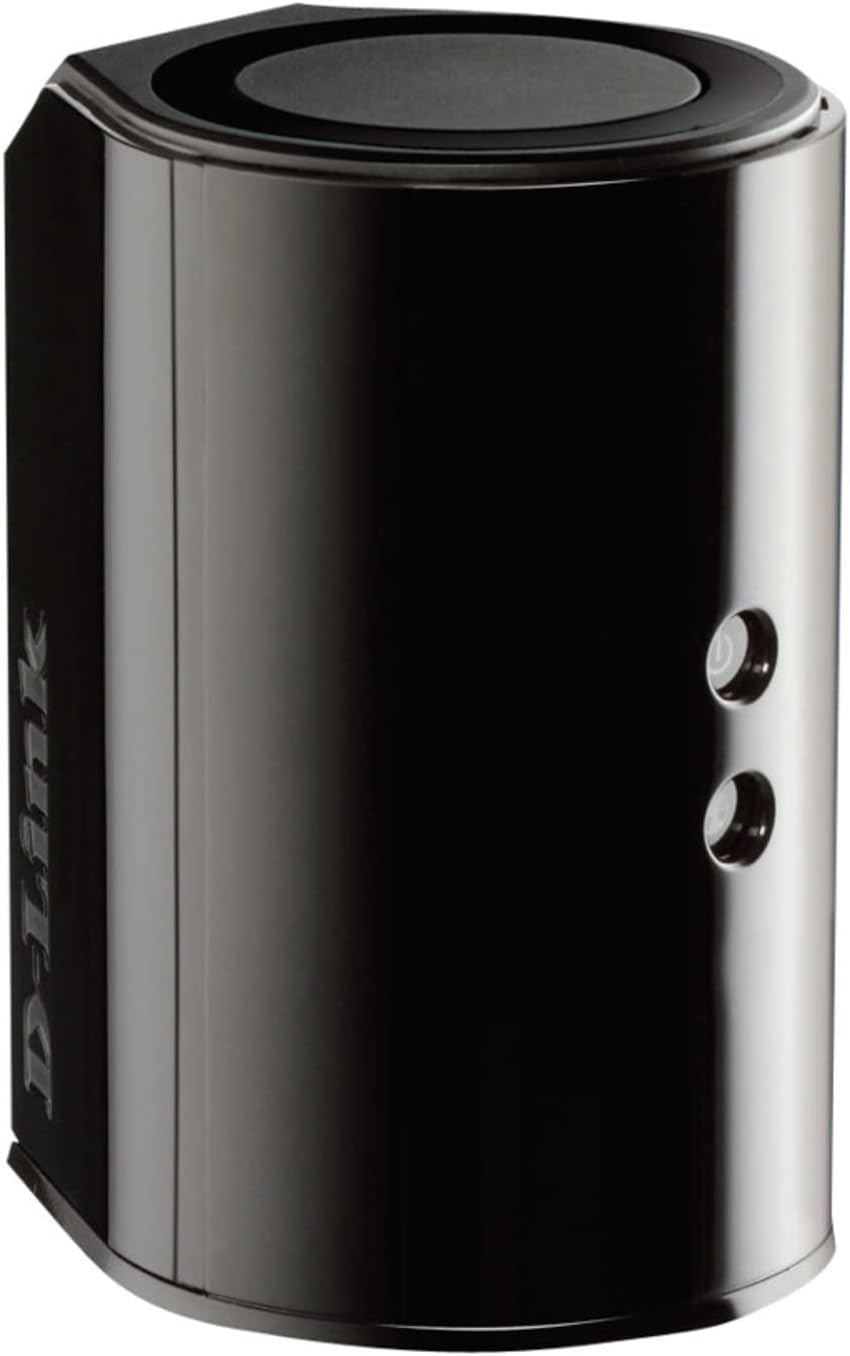
그림 3.3: 후면 View. Displays the back panel of the router, featuring the WAN (Internet) port, four LAN (Ethernet) ports, and the power input connector.
LED 표시등:
- 전원 LED: Solid green indicates the router is powered on. Blinking green indicates a firmware upgrade or reset.
- 인터넷 LED: Solid green indicates a successful connection to the internet. Blinking green indicates data activity. Amber indicates no internet connection.
포트 및 버튼:
- WAN(인터넷) 포트: 인터넷 접속을 위해 모뎀에 연결합니다.
- LAN 포트(1-4): 컴퓨터, 게임 콘솔, 네트워크 저장 장치와 같은 유선 장치를 연결하세요.
- USB 포트: Connect a USB storage device for network sharing.
- 전원 커넥터 : 포함된 전원 어댑터에 연결합니다.
- 재설정 버튼: 10초간 길게 누르면 공장 기본 설정으로 복원됩니다.
- WPS 버튼: Initiates Wi-Fi Protected Setup for easy wireless connection of compatible devices.
4. 설정
Follow these steps to set up your D-Link DIR-850L router:
- 라우터 위치 지정: Place your router in a central location in your home, away from obstructions and devices that may cause interference (e.g., cordless phones, microwaves).
- 모뎀에 연결:
- 모뎀의 전원을 끄세요.
- Connect one end of the provided Ethernet cable to the WAN (Internet) port on your DIR-850L router.
- 이더넷 케이블의 다른 쪽 끝을 모뎀의 이더넷 포트에 연결합니다.
- 전원 켜기:
- 모뎀의 전원을 켜고 표시등이 안정될 때까지 기다리세요(일반적으로 인터넷 연결이 활성화되었음을 나타냅니다).
- Connect the power adapter to the power connector on your DIR-850L router and plug it into a power outlet.
- Wait for the Power LED on the router to turn solid green. The Internet LED should also turn green, indicating a successful connection.
- 장치 연결:
- 유선 연결: Connect an Ethernet cable from one of the LAN ports (1-4) on the router to your computer's Ethernet port.
- 무선 연결: On your Wi-Fi enabled device (laptop, smartphone, tablet), search for available Wi-Fi networks. Select the network name (SSID) found on the Wi-Fi Configuration Card (usually a sticker on the bottom of the router) and enter the Wi-Fi password.
- 설치 마법사를 실행하세요:
- 열기 web browser (e.g., Chrome, Firefox) on the connected device.
- 유형
http://dlinkrouter.localor192.168.0.1주소 표시 줄에 입력하고 Enter를 누르십시오. - Follow the on-screen instructions of the D-Link Setup Wizard to configure your internet connection and personalize your Wi-Fi network name (SSID) and password.
Setup Video (General D-Link Router Overview):
Video 4.1: D-Link Wireless AC 1200 Mbps Home Cloud App-Enabled Dual-Band Gigabit Router Overview. 이 영상은 일반적인 내용을 제공합니다.view of D-Link routers, including the DIR-850L, and highlights their features and target users. While not a step-by-step setup guide, it offers insights into the router's capabilities.
5. 사용 설명서
Once your D-Link DIR-850L router is set up, you can manage and optimize your network.
연결 장치:
- 무선 전화: Use the Wi-Fi network name (SSID) and password you configured during setup to connect your wireless devices. The router supports both 2.4 GHz and 5 GHz bands.
- 열광한: Connect devices directly to the LAN ports using Ethernet cables for a stable, high-speed connection.
라우터 설정에 액세스:
To access advanced settings, open a web 브라우저로 이동하여 탐색하세요 http://dlinkrouter.local or 192.168.0.1. Log in with the administrator password you set during the initial setup. From here, you can:
- Wi-Fi 설정(SSID, 비밀번호, 보안 유형)을 변경합니다.
- Configure guest Wi-Fi networks.
- 보호자 통제 기능을 설정하세요.
- 연결된 장치를 관리합니다.
- 펌웨어를 업데이트합니다.
Using the USB Share Port:
Plug a USB storage device (e.g., flash drive, external hard drive) into the USB port on the router. You can then access and share files on this storage device across your network using the D-Link SharePort Mobile app or through network shares on your computer.
6. 유지관리
정기적인 유지관리는 라우터의 최적의 성능과 수명을 보장하는 데 도움이 됩니다.
- 재부팅: 주기적으로 라우터를 재부팅하십시오(전원 코드를 10초간 뽑았다가 다시 꽂으세요). 이렇게 하면 라우터의 메모리가 초기화되고 네트워크 연결이 새로 고쳐집니다. 사소한 성능 문제가 해결될 수 있습니다.
- 펌웨어 업데이트: Check the D-Link support website for firmware updates. Firmware updates can improve performance, add new features, and fix security vulnerabilities. Follow the instructions provided by D-Link carefully when performing updates.
- 청소: Keep the router clean and free from dust. Use a soft, dry cloth to wipe the exterior. Do not use liquid cleaners or aerosols. Ensure ventilation openings are not blocked.
- 보안: Regularly change your Wi-Fi password and router administrator password to enhance network security.
7. 문제 해결
If you encounter issues with your D-Link DIR-850L router, refer to the following common problems and solutions:
인터넷에 연결되지 않음:
- 케이블 확인: 모든 이더넷 케이블이 라우터와 모뎀에 안전하게 연결되어 있는지 확인하세요.
- 모뎀 상태: 모뎀이 제대로 작동하고 인터넷에 연결되어 있는지 확인하세요.
- 재부팅 순서: 모뎀 전원을 끄고, 그 다음 라우터 전원을 끄세요. 30초 정도 기다린 후 모뎀 전원을 먼저 켜세요. 모뎀이 완전히 연결되면 라우터 전원을 켜세요.
- ISP 연락처: If the issue persists, contact your Internet Service Provider (ISP) to confirm service status.
느린 Wi-Fi 속도:
- 라우터 배치: 라우터를 장애물이나 간섭원으로부터 멀리 떨어진 중앙 위치로 옮기십시오.
- 채널 간섭: 라우터에 로그인 web interface and try changing the Wi-Fi channel for both 2.4 GHz and 5 GHz bands to a less congested one.
- 연결된 장치: 사용하지 않는 기기는 네트워크에서 연결을 해제하세요.
- 펌웨어: 라우터의 펌웨어가 최신인지 확인하세요.
Wi-Fi에 연결할 수 없습니다:
- 올바른 비밀번호: 와이파이 비밀번호를 정확하게 입력했는지 다시 한번 확인하세요 (대소문자 구분).
- SSID 브로드캐스트: Ensure the router is broadcasting its Wi-Fi network name (SSID).
- WPS : If your device supports WPS, try using the WPS button on the router to connect.
- 라우터 재설정: As a last resort, perform a factory reset (see Hardware Overview) and reconfigure the router.
8. 사양
| 특징 | 설명 |
|---|---|
| 모델명 | 디알-850L |
| 무선형 | 802.11ac (backward compatible with 802.11a/b/g/n) |
| 주파수 대역 클래스 | 듀얼 밴드(2.4GHz 및 5GHz) |
| 무선 속도 | 최대 300Mbps(2.4GHz), 최대 867Mbps(5GHz) |
| 이더넷 포트 | 4 x 기가비트 LAN, 1 x 기가비트 WAN |
| USB 포트 | 1 x USB 2.0 (for SharePort) |
| 안테나 유형 | 내부 |
| 운영 체제 호환성 | Windows® 8, 7, Vista®, XP SP2, or Mac OS® X (v10.4 or higher) |
| 치수(길이x너비x높이) | 4.45 x 3.43 x 5.72 인치 |
| 품목 무게 | 9.9 온스(0.62 파운드) |
| 색상 | 검은색 |
9. 보증 및 지원
D-Link products are backed by a limited warranty. For specific warranty terms and conditions, please refer to the warranty information included with your product or visit the official D-Link web대지.
For technical support, product registration, and access to the latest drivers, firmware, and user manuals, please visit the D-Link support portal:
D-링크 지원 Web대지: www.dlink.com/support
You may also find helpful resources and community forums on the D-Link web대지.