
1. 서론
This user manual provides comprehensive instructions for the installation, operation, and maintenance of your D-Link DHP-W310AV Powerline Network Adapter. The DHP-W310AV extends your home network by utilizing your existing electrical wiring to transmit network data, offering both wired Ethernet and wireless 802.11n connectivity. Please read this manual carefully to ensure proper setup and optimal performance of your device.
2. 패키지 내용
패키지에 다음 품목이 포함되어 있는지 확인하십시오.
- D-Link DHP-W310AV Powerline Network Adapter
- 이더넷 케이블
- 빠른 설치 가이드
If any of the above items are missing or damaged, please contact your local D-Link reseller for assistance.
3. 제품 오버view
The DHP-W310AV is designed for ease of use and compact integration into your home. Below are descriptions of its physical features and indicators.
3.1 전면 패널 및 LED 표시등

그림 1: 앞쪽 view of the D-Link DHP-W310AV, showing the D-Link logo, model number, and four LED indicators on the left side. These indicators provide status information for power, Powerline connection, Ethernet activity, and Wi-Fi status.
- 전원 LED: 장치의 전원 상태를 나타냅니다.
- 전력선 LED: Indicates the status of the Powerline connection to other adapters.
- 이더넷 LED : 이더넷 포트의 활동을 나타냅니다.
- 와이파이 LED: 무선 네트워크의 상태를 나타냅니다.
3.2 Rear Panel (Power Plug)
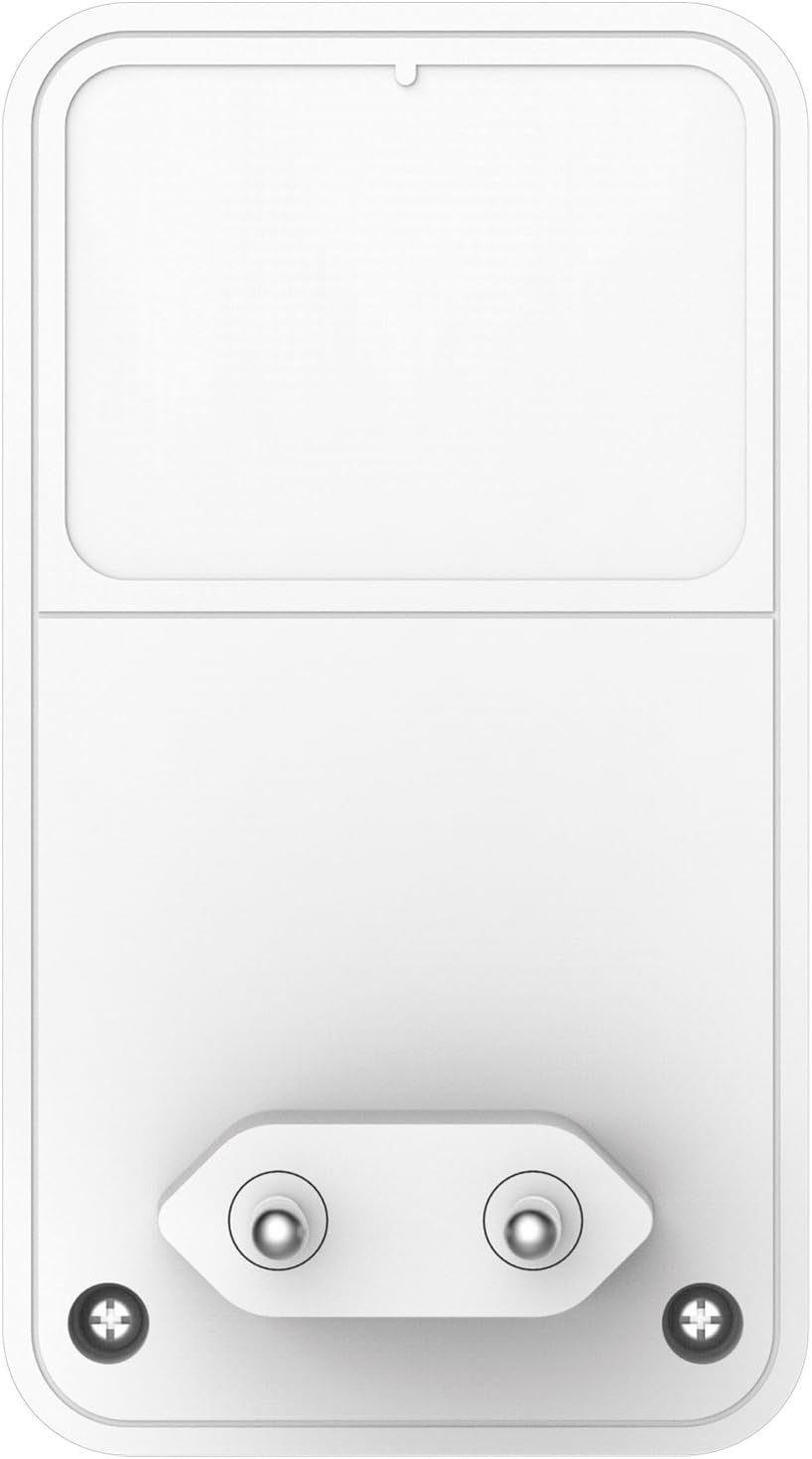
그림 2: 뒤쪽 view of the D-Link DHP-W310AV, displaying the integrated power plug designed for direct insertion into a wall outlet. This design ensures a compact form factor and direct power supply.
3.3 Side Panel (LAN Port and Reset Button)

그림 3: 옆 view of the D-Link DHP-W310AV, highlighting the LAN (Ethernet) port for wired connections and the recessed Reset button. The Reset button is used to restore the device to factory default settings.
- LAN 포트: An RJ-45 Ethernet port for connecting wired devices such as computers, gaming consoles, or smart TVs.
- 재설정 버튼: Used to restore the device to its factory default settings. Press and hold for approximately 10 seconds while the device is powered on.
4. 설정
Follow these steps to set up your D-Link DHP-W310AV Powerline Network Adapter. This device requires at least one other Powerline adapter (e.g., D-Link DHP-308AV, DHP-P308AV, or similar) connected to your router to function.
4.1 초기 배치
- Plug in the Main Powerline Adapter: Connect your primary Powerline adapter (not included with DHP-W310AV) to an electrical outlet near your internet router. Use an Ethernet cable to connect this adapter to your router.
- Plug in the DHP-W310AV: Plug the DHP-W310AV into an electrical outlet in the room where you want to extend your network coverage. Ensure it is plugged directly into a wall outlet, not a power strip or surge protector, for optimal performance.
- Wait for Powerline LED: Wait for the Powerline LED on the DHP-W310AV to turn solid green, indicating a successful connection to your existing Powerline network. This may take a few moments.
4.2 Securing the Powerline Network (Pairing)
For security, it is recommended to pair your Powerline adapters to create a private, encrypted network.
- Press Security Button on Existing Adapter: On your existing Powerline adapter (connected to the router), press the Simple Connect or Security button. Refer to that adapter's manual for exact button location and timing.
- Press Security Button on DHP-W310AV: Within two minutes, press the Simple Connect or Security button on the DHP-W310AV. This button is typically located on the side or bottom of the device.
- 페어링 확인: The Powerline LED on both adapters should turn solid green, indicating a successful and secure connection.
4.3 무선 설정
The DHP-W310AV broadcasts a Wi-Fi network. The default Wi-Fi network name (SSID) and password (WPA/WPA2 key) are usually printed on a label on the bottom or back of the device.
- Wi-Fi에 연결: On your wireless device (laptop, smartphone, tablet), search for available Wi-Fi networks and select the SSID corresponding to your DHP-W310AV.
- 비밀번호를 입력하세요: Enter the Wi-Fi password (WPA/WPA2 key) when prompted.
- 인터넷 접속: Once connected, your device should have internet access through the Powerline network.
For advanced Wi-Fi settings, such as changing the SSID or password, you may need to access the device's web-based configuration utility. Refer to the full D-Link DHP-W310AV manual for detailed instructions on accessing and configuring these settings.
5. 사용 설명서
5.1 유선 연결
To connect a wired device to your Powerline network:
- Ensure the DHP-W310AV is powered on and the Powerline LED is solid green.
- Connect one end of an Ethernet cable to the LAN port on the DHP-W310AV.
- Connect the other end of the Ethernet cable to the Ethernet port on your wired device (e.g., computer, game console).
- The Ethernet LED on the DHP-W310AV should illuminate, indicating an active connection.
5.2 무선 연결
To connect a wireless device to your Powerline network via Wi-Fi:
- Ensure the DHP-W310AV is powered on and the Wi-Fi LED is illuminated.
- On your wireless device, open the Wi-Fi settings and select the network name (SSID) of the DHP-W310AV.
- Enter the Wi-Fi password (WPA/WPA2 key) when prompted.
- Once connected, your device will have wireless internet access.
6. 유지관리
To ensure the longevity and optimal performance of your DHP-W310AV:
- 청소: 부드럽고 마른 천으로 기기를 살살 닦아주세요. 액체 또는 에어로졸 세척제를 사용하지 마세요.
- 놓기: Avoid placing the device in direct sunlight, near heat sources, or in areas with high humidity. Ensure adequate ventilation around the device.
- 펌웨어 업데이트: Periodically check the D-Link support web펌웨어 업데이트 사이트입니다. 펌웨어를 업데이트하면 성능을 향상시키고, 새로운 기능을 추가하고, 버그를 수정할 수 있습니다.
- 전원 주기: If you experience intermittent issues, try unplugging the device from the power outlet for 10 seconds and then plugging it back in.
7. 문제 해결
This section provides solutions to common issues you might encounter with your DHP-W310AV.
7.1 No Power LED
- Ensure the DHP-W310AV is securely plugged into a working electrical outlet.
- 콘센트가 제대로 작동하는지 확인하기 위해 다른 기기를 같은 콘센트에 꽂아보세요.
7.2 Powerline LED is Off or Blinking
- Ensure all Powerline adapters are plugged directly into wall outlets, not power strips or surge protectors.
- Verify that all Powerline adapters are on the same electrical circuit. Powerline technology works best within the same electrical phase.
- Ensure the main Powerline adapter is connected to your router and powered on.
- 4.2절에 설명된 대로 어댑터를 다시 페어링해 보세요.
7.3 No Internet Access via Wired or Wireless Connection
- Check the Powerline LED status. If it's off or blinking, refer to the previous troubleshooting steps.
- 메인 라우터에 인터넷 연결이 활성화되어 있는지 확인하십시오.
- For wired connections, ensure the Ethernet cable is securely connected to both the DHP-W310AV and your device.
- For wireless connections, ensure you are connected to the correct Wi-Fi network (SSID) and have entered the correct password.
- Try restarting your router, all Powerline adapters, and the connected devices.
7.4 느린 네트워크 속도
- Powerline performance can be affected by electrical interference. Avoid plugging adapters into outlets shared with high-power appliances (e.g., washing machines, refrigerators).
- 어댑터가 벽면 콘센트에 직접 꽂혀 있는지 확인하십시오.
- The quality of your home's electrical wiring can impact performance.
- Ensure your main internet connection speed is adequate.
8. 사양
| 특징 | 설명 |
|---|---|
| 모델 번호 | DHP-W310AV |
| 무선형 | 802.11n |
| 데이터 전송 속도 | Up to 500 Mbps (Powerline), 300 Mbps (Wireless) |
| 데이터 링크 프로토콜 | Ethernet, HomePlug AV |
| 하드웨어 인터페이스 | 1 x 10/100 Ethernet Port (RJ-45) |
| 호환 장치 | 데스크톱 컴퓨터, 노트북, 게임 콘솔, 스마트 TV 등 |
| 치수(길이x너비x높이) | 2.4 x 1.67 x 2.68인치(6.1 x 4.24 x 6.81cm) |
| 품목 무게 | 4.4 온스(125.6그램) |
| 전원 입력 | 100-240V 교류, 50/60Hz |
9. 보증 및 지원
For detailed warranty information and technical support, please refer to the warranty card included with your product or visit the official D-Link support website. You can find drivers, firmware updates, and additional documentation there.
D-링크 지원 Web대지: www.dlink.com/support