
1. 서론
This manual provides instructions for the installation, operation, and maintenance of your DIGITUS DN-70542 Wireless LAN USB 2.0 Adapter. This device allows your computer to connect to a wireless network using the 802.11n standard, offering data transfer rates of up to 300 Mbps.
The adapter is backward compatible with IEEE 802.11g and 802.11b standards and operates within the 2.4-2.4835GHz frequency range. It also features a Wireless Protected Setup (WPS) function for easy and secure network connection.

그림 1.1: 상단 view of the DIGITUS DN-70542 Wireless LAN USB 2.0 Adapter.

그림 1.2: 각도 view of the DIGITUS DN-70542 adapter, highlighting its compact design.

그림 1.3: 상세 view of the USB 2.0 connector of the DIGITUS DN-70542 adapter.
2. 패키지 내용
패키지에 모든 품목이 들어 있는지 확인하세요.
- 1 x DIGITUS DN-70542 Mini USB WiFi Adapter
- 1 x Product Support CD-ROM (containing drivers and utilities)
- 1 x 사용자 매뉴얼(이 문서)
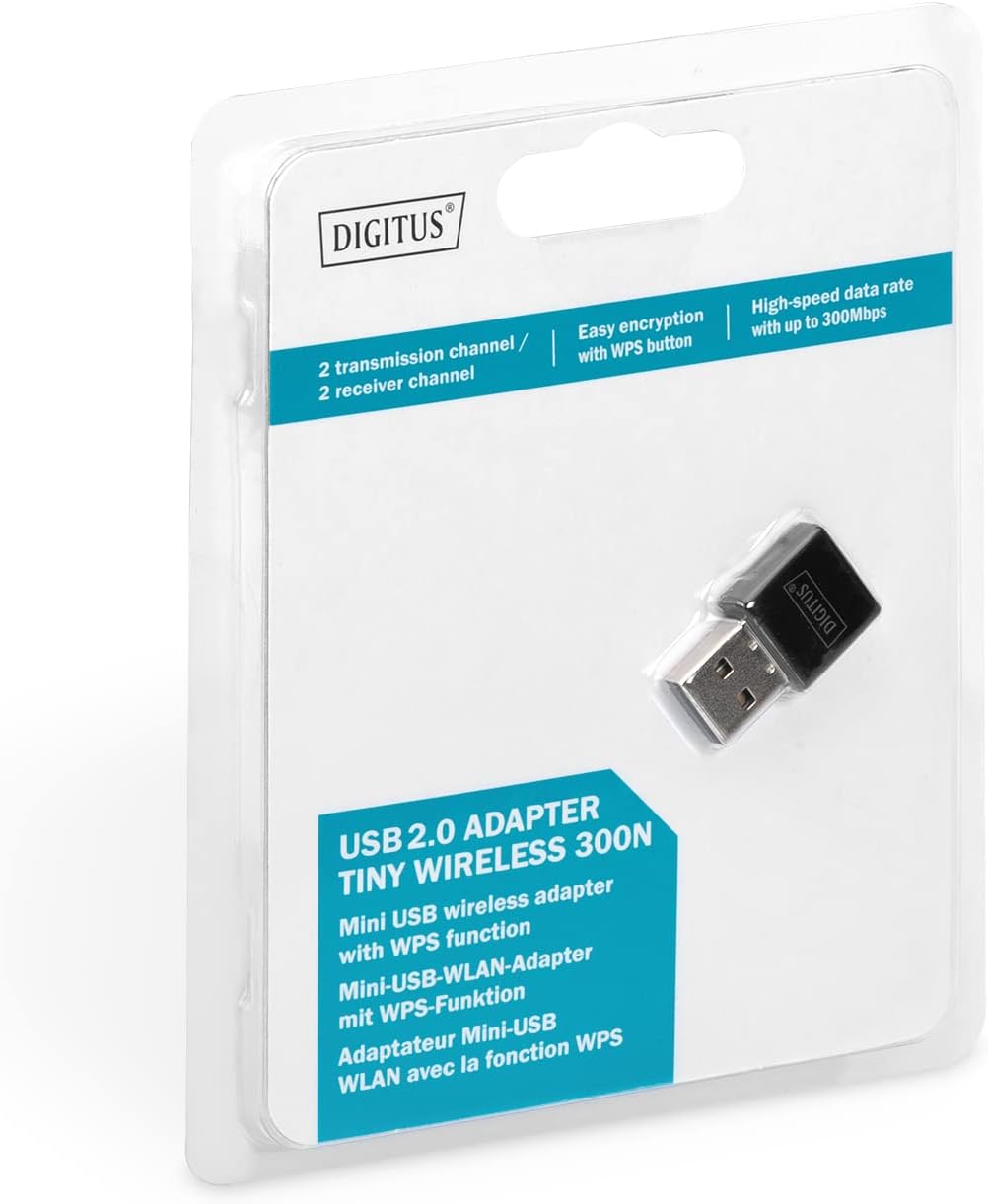
Figure 2.1: Retail packaging of the DIGITUS DN-70542 adapter, showing the adapter and its key features.
3. 설정 가이드
Follow these steps to install your Wireless LAN USB Adapter:
- 드라이버 설치: Before connecting the adapter, insert the included Product Support CD-ROM into your computer's optical drive. Follow the on-screen instructions to install the necessary drivers. If your computer does not have an optical drive, or if you encounter issues, please visit the official DIGITUS website to download the latest drivers for your operating system (Windows).
Note: Some operating systems, particularly older versions of Windows, may require driver installation prior to connecting the device. Refer to the Troubleshooting section if you encounter issues during this step.
- 어댑터를 연결하십시오: Locate an available USB 2.0 port on your computer. Carefully insert the DIGITUS DN-70542 Wireless LAN USB 2.0 Adapter into the USB port.
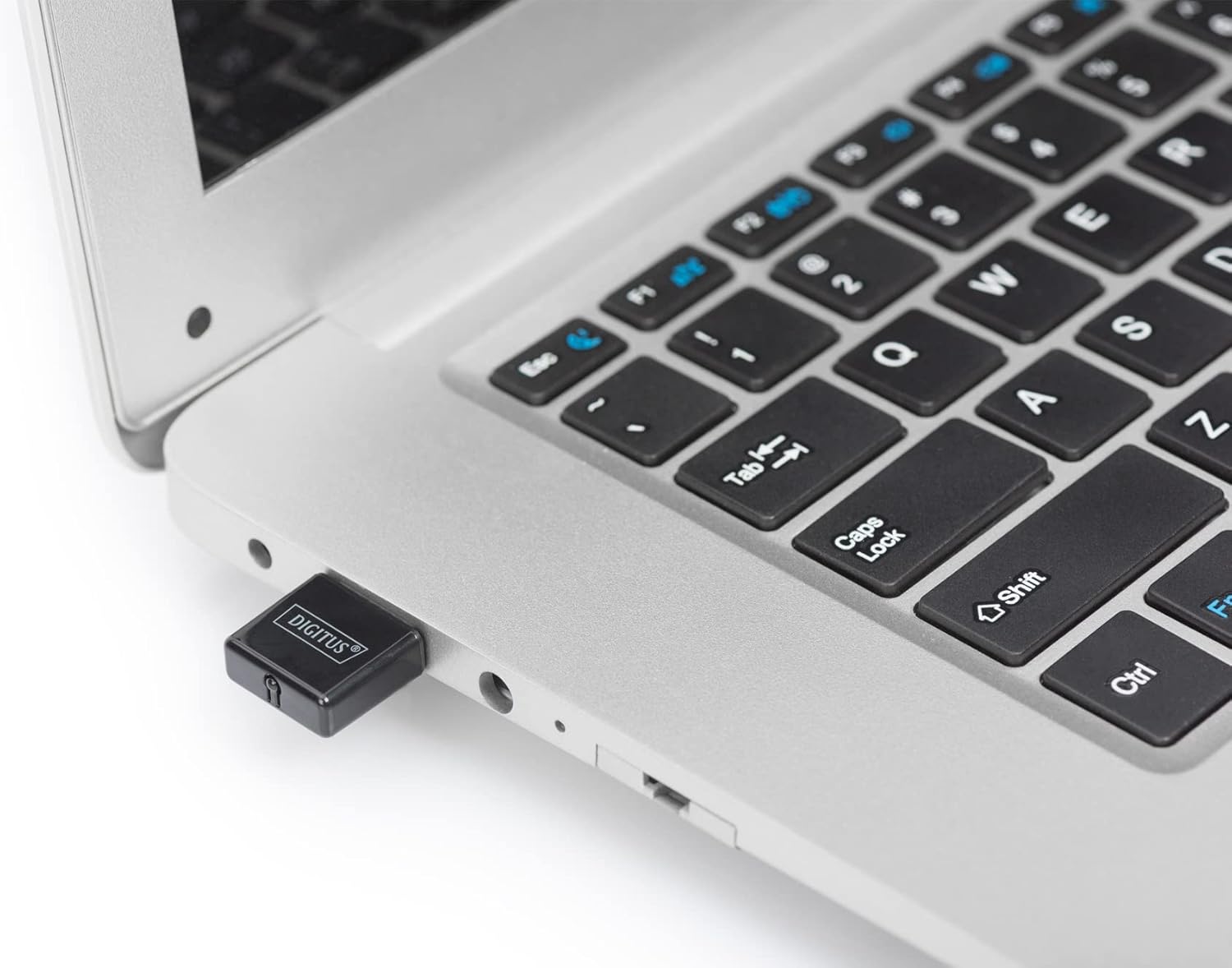
Figure 3.1: The DIGITUS DN-70542 adapter inserted into a laptop's USB port.

그림 3.2: 더 자세히 view of the adapter connected to a laptop, showing its compact size.
- 설치 확인: After connecting, your operating system should detect the new hardware and complete the installation. You can verify the installation by checking your computer's Device Manager (for Windows) to ensure the wireless adapter is listed and functioning correctly.
4. 사용 설명서
Once the adapter is successfully installed, you can connect to a wireless network.
- 무선 네트워크에 연결:
- 컴퓨터의 무선 네트워크 설정을 엽니다.
- 사용 가능한 무선 네트워크를 검색합니다.
- 목록에서 원하는 네트워크(SSID)를 선택하세요.
- 메시지가 나타나면 네트워크 보안 키(비밀번호)를 입력하세요.
- 무선 연결을 설정하려면 "연결"을 클릭하십시오.
- Using WPS (Wi-Fi Protected Setup):
The adapter supports WPS for a simplified and secure connection to compatible routers.
- 무선 라우터의 WPS 버튼을 누릅니다.
- Within two minutes, press the WPS button on the DIGITUS DN-70542 adapter. The WPS button is a small, recessed button on the side of the adapter.
- 어댑터와 라우터가 자동으로 안전한 연결을 설정합니다.

Figure 4.1: The WPS button located on the side of the adapter.
5. 유지관리
To ensure optimal performance and longevity of your DIGITUS DN-70542 adapter, follow these guidelines:
- 어댑터를 깨끗하고 먼지가 없는 상태로 유지하세요. 청소 시에는 부드럽고 마른 천을 사용하세요.
- 어댑터를 극한의 온도, 습도 또는 직사광선에 노출시키지 마세요.
- 어댑터를 직접 분해하거나 수리하지 마십시오. 보증이 무효화됩니다.
- 사용하지 않을 때는 어댑터를 안전한 곳에 보관하여 물리적 손상을 방지하세요.
6. 문제 해결
If you encounter issues with your DIGITUS DN-70542 Wireless LAN USB 2.0 Adapter, refer to the following common problems and solutions:
- Adapter Not Detected / Driver Installation Issues:
- 어댑터가 작동하는 USB 포트에 완전히 삽입되었는지 확인하십시오.
- 다른 USB 포트를 사용해보십시오.
- Reinstall the drivers from the provided CD-ROM.
- Download the latest drivers from the official DIGITUS web대지.
- If using Windows 8.1 or newer and encountering issues like "Bluescreen" or "infected file" warnings during driver installation, temporarily disable antivirus software (like Windows Defender) during driver installation, then re-enable it immediately after. Ensure you are downloading drivers from a trusted source (DIGITUS official web대지).
- Check Device Manager to see if the adapter is listed with any error symbols.
- 무선 네트워크에 연결할 수 없습니다.
- Verify that your wireless router is powered on and broadcasting a signal.
- Ensure you are entering the correct network security key (password).
- 무선 라우터에 더 가까이 이동하면 신호 강도가 향상됩니다.
- Restart your computer and the wireless router.
- Check if other devices can connect to the same wireless network.
- 느린 연결 속도:
- Ensure your router supports 802.11n for optimal speeds.
- 다른 전자 기기(예: 전자레인지, 무선 전화기)의 간섭을 최소화하세요.
- 라우터의 펌웨어를 업데이트하세요.
- 네트워크에서 대역폭을 소모하는 다른 장치가 있는지 확인하세요.
7. 사양
| 특징 | 설명 |
|---|---|
| 모델 | DN-70542 |
| 하드웨어 인터페이스 | USB 2.0 |
| 무선 표준 | IEEE 802.11n, IEEE 802.11g, IEEE 802.11b |
| 데이터 전송 속도 | 최대 300Mbps |
| 주파수 범위 | 2.4 - 2.4835GHz |
| 보안 기능 | WPS (Wireless Protected Setup) function |
| 운영 체제 지원 | 윈도우 |
| 제품 치수 | 24 x 15 x 2 mm (approximate); 15 g |
| 제조업체 | ASSMANN Electronic GmbH PES - BO DE |
8. 보증 및 지원
For warranty information and technical support, please refer to the documentation included with your product or visit the official DIGITUS website. Contact details for customer support can typically be found on the manufacturer's web대지.
보증 청구를 위해 구매 증빙서류를 보관하세요.