
1. 제품 오버view
The D-Link DIR-655 Xtreme N Gigabit Router is an IEEE 802.11n (draft) compliant device designed to deliver faster speeds and extended range compared to IEEE 802.11g, while maintaining backward compatibility with IEEE 802.11g and IEEE 802.11b devices. This router enables high-speed internet access for multiple computers, game consoles, and media players when connected to a cable or DSL modem. It facilitates the creation of a secure wireless network for sharing photos, files, music, videos, printers, and network storage.
2. 설정 가이드
Follow these steps to set up your D-Link DIR-655 Xtreme N Wireless Router:
2.1. 풀기 및 배치
- 모든 품목을 포장에서 조심스럽게 꺼내세요.
- Place the router in a central location in your home or office for optimal wireless coverage. Avoid placing it near large metal objects, concrete walls, or devices that emit radio frequency interference (e.g., microwave ovens, cordless phones).
- Ensure proper ventilation around the router.
2.2. 하드웨어 연결
- 안테나 연결: Attach the three external antennas to the connectors on the back of the router. Ensure they are securely tightened.
- 모뎀에 연결:
- Power off your cable or DSL modem.
- Connect one end of an Ethernet cable to the Internet (WAN) port on the back of the DIR-655 router.
- Connect the other end of this Ethernet cable to the Ethernet port on your cable or DSL modem.
- 모뎀의 전원을 켜고 표시등이 안정될 때까지 기다리세요(일반적으로 인터넷 연결이 활성화되었음을 나타냅니다).
- 전원 연결: Plug the power adapter into the power port (12V===2A) on the back of the router, then plug the other end into a wall outlet or power strip. The power LED on the front of the router should illuminate.
- 기기 연결 (유선 연결 선택 사항): For wired connections, connect Ethernet cables from your computers or other network devices to any of the four LAN ports (1-4) on the back of the router.
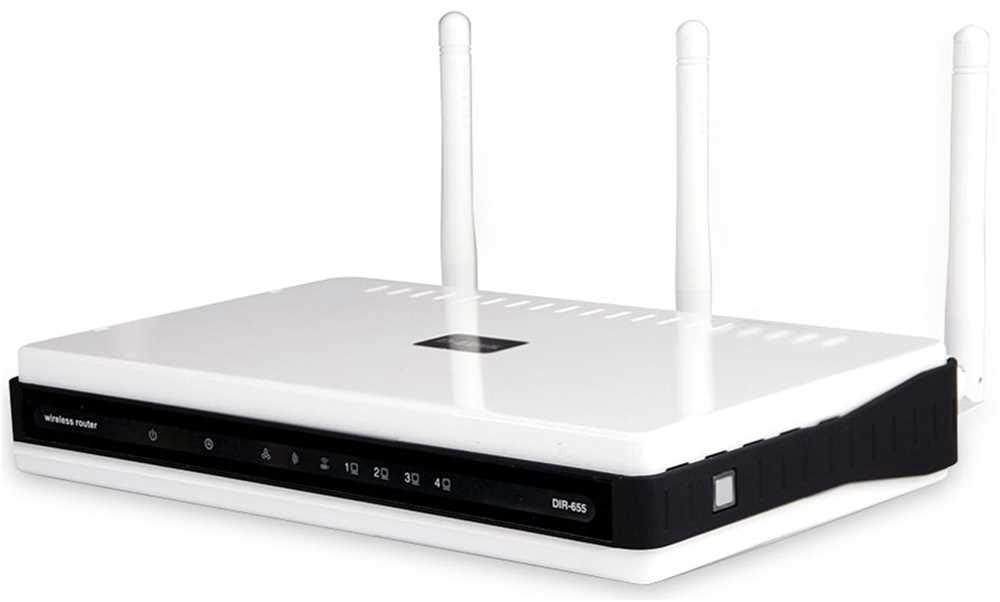
그림 1: 후면 view of the D-Link DIR-655 router, highlighting the LAN, Internet, USB, Reset, and Power ports, along with the three external antennas.

그림 2: 전면 view of the D-Link DIR-655 router, displaying the D-Link logo and various status indicator lights.
2.3. 초기 설정 (무선)
To connect wirelessly and configure your router:
- 네트워크 이름(SSID) 찾기: Look for the Wi-Fi network name (SSID) printed on a label on the bottom or back of your router.
- Wi-Fi에 연결: On your computer or mobile device, search for available Wi-Fi networks and select the SSID of your D-Link DIR-655.
- 비밀번호를 입력하세요: Enter the Wi-Fi password (also known as the network key or passphrase) found on the same label as the SSID.
- 액세스 라우터 인터페이스: 열기 web 브라우저와 유형
http://dlinkrouter.localor192.168.0.1(default IP address) into the address bar. - 로그인: 기본 사용자 이름을 입력하세요(일반적으로
admin) and password (often blank oradmin). Refer to your router's label for default login credentials. - 설치 마법사를 실행하세요: Follow the on-screen instructions of the D-Link setup wizard to configure your internet connection and personalize your Wi-Fi network name and password.
3. 사용 설명서
The D-Link DIR-655 is designed for high-performance wireless networking:
- Wireless N Technology: Utilizes IEEE 802.11n (draft) for enhanced speed and range, ideal for streaming HD video, online gaming, and large file 이전.
- 기가비트 이더넷 포트: Four LAN ports provide 10x faster wired connections than standard Ethernet, ensuring high-speed data transfer for connected devices.
- 듀얼 밴드 지원: The router supports dual-band operation, allowing for flexible network configurations and reduced interference.
- 다중 안테나: Three external antennas help to optimize wireless signal strength and coverage throughout your home or office.
- USB SharePort: The USB port allows you to connect a USB storage device or printer and share it across your network.
4. 유지관리
라우터의 최적 성능과 수명 연장을 위해서는 다음 사항을 준수하십시오.
- 펌웨어 업데이트: Regularly check the D-Link support web펌웨어 업데이트 사이트입니다. 펌웨어를 업데이트하면 성능이 향상되고, 새로운 기능이 추가되며, 보안 취약점이 수정될 수 있습니다.
- 물리적 청소: 라우터를 깨끗하고 먼지가 없는 상태로 유지하세요. 부드럽고 마른 천으로 외부를 닦으세요. 통풍구가 막히지 않았는지 확인하세요.
- 주기적으로 다시 시작: 몇 주에 한 번씩 공유기를 재부팅하면 메모리를 정리하고 사소한 네트워크 문제를 해결하여 전반적인 성능을 향상시킬 수 있습니다.
- 안전한 배치: Ensure the router is placed in a secure location where it won't be easily knocked over or exposed to extreme temperatures or moisture.
5. 문제 해결
If you encounter issues with your D-Link DIR-655 router, try these common troubleshooting steps:
- 인터넷에 연결되지 않음:
- 모든 케이블 연결 상태(전원, 모뎀 연결용 이더넷 케이블, 장치 연결용 이더넷 케이블)를 확인하십시오.
- 모뎀을 재시작하고, 라우터를 재시작한 다음, 연결된 기기들을 재시작하세요.
- 인터넷 서비스 제공자(ISP) 연결이 활성화되어 있는지 확인하세요.
- 느린 무선 속도:
- 장치가 라우터의 최적 범위 내에 있는지 확인하세요.
- 다른 전자 장치의 간섭을 최소화하세요.
- Consider changing your Wi-Fi channel in the router settings to avoid congestion.
- 장치의 무선 드라이버를 업데이트하세요.
- 라우터 설정에 접근할 수 없습니다:
- 장치가 라우터 네트워크(유선 또는 무선)에 연결되어 있는지 확인하세요.
- 기본 IP 주소를 사용해 보세요.
192.168.0.1orhttp://dlinkrouter.local. - 브라우저의 캐시와 쿠키를 지우거나 다른 브라우저를 사용해 보세요.
- If you forgot your password, perform a factory reset (see below).
- 공장 초기화 : To restore the router to its factory default settings, locate the "Reset" button on the back of the router. With the router powered on, use a paperclip or similar pointed object to press and hold the reset button for about 10 seconds. Release the button and wait for the router to restart. 메모: This will erase all custom settings, including your Wi-Fi name and password.
6. 사양
| 특징 | 세부 사항 |
|---|---|
| 모델명 | DIR 655 |
| 무선형 | 802.11n |
| 상표 | 디링크 |
| 품목 모델 번호 | DIR-655/E |
| 운영 체제 | 지노스 |
| 품목 무게 | 2.65온스(75그램) |
| 제품 치수 | 47.44 x 77.95 x 12.6 인치 |
| 권tage | 110 볼트 |
| 특징 | 뉴스 |
| 주파수 대역 클래스 | 듀얼 밴드 |
| 무선 통신 표준 | 802.11n |
| 호환 장치 | 게임 콘솔, 프린터 |
| 추천 용도 | 비즈니스, 게임, 홈 |
| 연결 기술 | 이더넷 |
| 안테나 유형 | 결정된 |
7. 보증 및 지원
For detailed warranty information and technical support, please refer to the official D-Link website or the documentation included with your product. You can also visit the D-Link support portal for FAQs, firmware downloads, and contact options.
온라인 지원: www.dlink.com/support