
1. 서론
The Digitus USB to Serial Adapter (Model DA-70157) provides a convenient solution for connecting serial devices to a computer via a USB port. This adapter converts a USB 2.0 port into an RS485 serial port, enabling modern computers without traditional serial ports to communicate with a wide range of serial devices. It is ideal for industrial automation, data acquisition, and other applications requiring RS485 communication.

Figure 1: Digitus USB to Serial Adapter (DA-70157) with included RS485 terminal block.
2. 패키지 내용
패키지에 모든 품목이 들어 있는지 확인하세요.
- 1x Digitus USB to Serial Adapter (DA-70157)
- 1x USB A Extension Cable (80cm)
- 1x RS485 Terminal Block
- 1x Product Support CD-ROM (containing drivers and documentation)

Figure 2: The Digitus USB to Serial Adapter as packaged, showing the adapter and the terminal block.
3. 설정 및 설치
Follow these steps to set up your Digitus USB to Serial Adapter:
- 드라이버 설치: Before connecting the adapter, it is recommended to install the necessary drivers.
- Insert the provided Product Support CD-ROM into your computer's optical drive.
- Navigate to the driver folder for your operating system (e.g., Windows, macOS, Linux).
- Run the driver setup executable and follow the on-screen instructions to complete the installation.
- Alternatively, the latest drivers can often be downloaded from the official Digitus web대지.
- 어댑터를 연결하십시오:
- Connect the USB-A male end of the Digitus USB to Serial Adapter to an available USB port on your computer. You may use the included 80cm USB extension cable if needed.
- The operating system should detect the new hardware and, if drivers were pre-installed, configure the device automatically.
- Connect your Serial Device:
- Attach your RS485 serial device to the DB9 male connector of the adapter.
- For devices requiring screw terminal connections, use the provided RS485 terminal block. Connect the appropriate RS485 A/B and ground wires from your device to the terminal block, then connect the terminal block to the DB9 female port on the adapter.

Figure 3: Connection options for the adapter, including RS485 female, RS485 male, 4-pole industrial terminal, and USB Type-A male.

그림 4: 예ample of a one-to-one connection setup, showing a label printer connected to a PC via the USB 2.0 Serial Adapter and an extension cable.
4. 사용 설명서
Once the adapter and drivers are successfully installed, your computer will recognize the adapter as a virtual COM port. You can then use any serial communication software to interact with your connected RS485 device.
- COM 포트를 확인하십시오. Open your computer's Device Manager (Windows) or equivalent system utility (macOS/Linux) to identify the assigned COM port number for the Digitus USB to Serial Adapter. It will typically appear under "Ports (COM & LPT)".
- 소프트웨어 구성: In your serial communication application (e.g., PuTTY, RealTerm, custom software), select the identified COM port and configure the serial parameters (baud rate, data bits, parity, stop bits, flow control) to match those of your RS485 device.
- 의사소통 시작: Once configured, you can open the serial port in your software and begin sending and receiving data to and from your RS485 device.
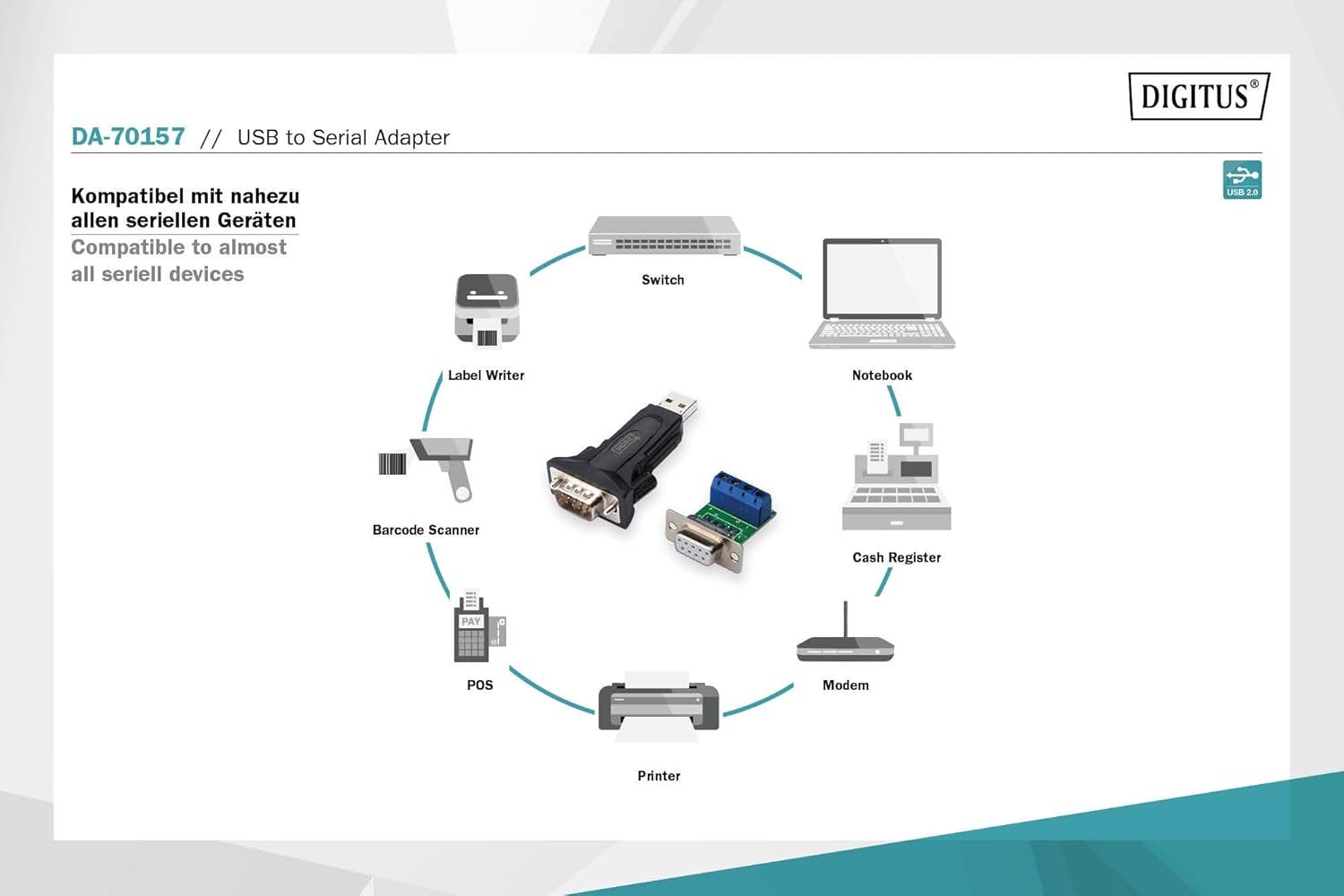
Figure 5: The adapter is compatible with a wide range of serial devices including switches, notebooks, cash registers, modems, printers, POS systems, barcode scanners, and label writers.
5. 유지관리
The Digitus USB to Serial Adapter is designed for durability and requires minimal maintenance. Follow these guidelines to ensure its longevity:
- 청소: 어댑터를 닦을 때는 부드럽고 마른 천을 사용하십시오. 액체 세척제나 용제는 기기를 손상시킬 수 있으므로 사용하지 마십시오.
- 저장: 어댑터를 사용하지 않을 때는 직사광선과 극한 온도 변화를 피해 서늘하고 건조한 곳에 보관하십시오.
- 손질: 어댑터를 조심스럽게 다루십시오. 떨어뜨리거나 강한 충격을 가하지 마십시오.
- 케이블 관리 : Ensure that cables are not excessively bent or kinked, which can lead to internal wire damage.
6. 문제 해결
If you encounter issues with your Digitus USB to Serial Adapter, refer to the following common problems and solutions:
| 문제 | 가능한 원인 | 해결책 |
|---|---|---|
| 컴퓨터가 어댑터를 인식하지 못합니다. | Missing or incorrect drivers. Faulty USB port. | Ensure drivers are correctly installed from the CD-ROM or Digitus website. Try a different USB port on your computer. Restart your computer. |
| Communication errors with serial device. | Incorrect serial port settings (baud rate, etc.). Incorrect wiring of RS485 terminal block. | Verify that the serial parameters in your software match those of your device. Double-check the wiring of the RS485 terminal block (A to A, B to B, Ground to Ground). |
| Device Manager shows "Unknown Device" or error. | 드라이버 설치 문제입니다. | Uninstall any existing drivers for the device, then reinstall the correct drivers. Ensure your operating system is up to date. |
| 연결이 간헐적입니다. | Loose connection. USB cable issue. | Ensure all connections (USB, serial, terminal block) are secure. Try using a different USB extension cable or connecting the adapter directly to the computer's USB port. |
7. 사양
| 특징 | 세부 사항 |
|---|---|
| 모델 번호 | 다-70157 |
| 인터페이스 | USB 2.0 (Type-A male) to RS485 (DB9 male) |
| 칩셋 | FT232RL (FTDI) |
| 데이터 전송 속도 | 최대 3Mbps |
| 지원되는 운영 체제 | Windows, macOS, Linux (드라이버에 따라 다름) |
| Cable Length (Extension) | 80 cm (USB A male / USB A female) |
| 제품 크기(L x W x H) | 2.64 x 1.38 x 0.59인치(대략) |
| 품목 무게 | 0.035 온스(대략) |
| 색상 | Black (DA-70157) |
8. 보증 및 지원
Digitus products are designed for reliability and performance. For information regarding warranty coverage and technical support, please refer to the documentation included on the Product Support CD-ROM or visit the official Digitus web사이트. 보증 청구를 위해 구매 증빙 자료로 구매 영수증을 보관하세요.
For further assistance, you may contact Digitus customer support through their official channels. Please have your product model number (DA-70157) and a detailed description of your issue ready.