
1. 서론
The D-Link DGS-1500-28 SmartPro 24-Port Gigabit Switch is a high-performance Layer 3 managed switch designed for small to medium-sized businesses. It offers 24 Gigabit Ethernet ports and 4 SFP+ expansion slots, providing flexible connectivity and advanced management features. This manual provides essential information for the proper installation, configuration, operation, and maintenance of your DGS-1500-28 switch.
2. 패키지 내용
Verify the following items are present in your DGS-1500-28 package. If any item is missing or damaged, please contact your local D-Link reseller for assistance.
- DGS-1500-28 SmartPro 24-Port Gigabit Switch
- 전원 코드
- Rack Mount Kit (two brackets and screws)
- 고무발(탁상 설치용)
- Console Cable (RJ-45 to RS-232)
- 빠른 설치 가이드
- CD-ROM (containing product documentation)
3. 물리적 설명
3.1 전면 패널
The front panel of the DGS-1500-28 switch features the Gigabit Ethernet ports, SFP+ slots, and LED indicators for monitoring the switch's status and activity.
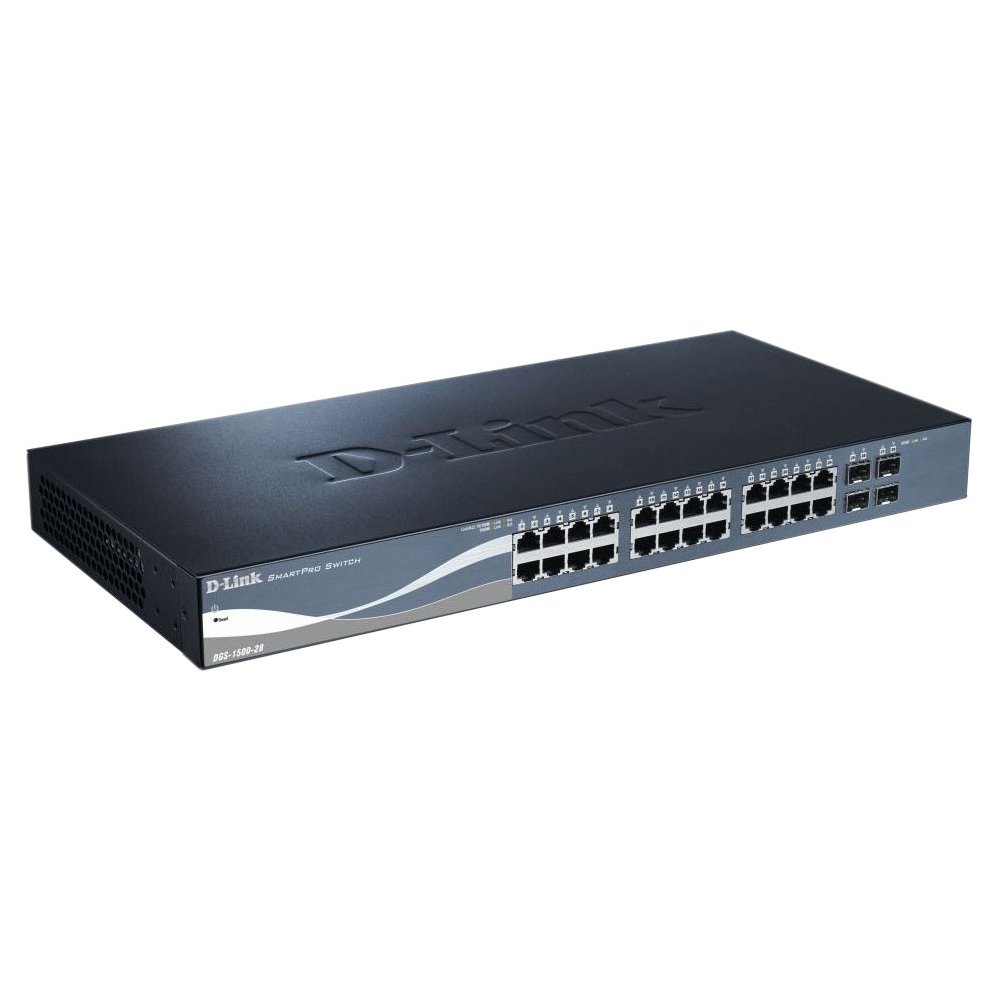
This image displays the front panel of the D-Link DGS-1500-28 switch, featuring 24 RJ-45 Gigabit Ethernet ports and LED indicators for status and activity.
- RJ-45 포트(1-24): 10/100/1000 Mbps Gigabit Ethernet ports for connecting network devices.
- SFP+ 슬롯(25-28개): 10 Gigabit Ethernet SFP+ ports for fiber optic connections or stacking.
- LED 표시등:
- 전원 LED: 전원 상태를 나타냅니다.
- 링크/액티브 LED(포트별): Indicates network link and data activity.
- Speed LED (per port): Indicates connection speed (e.g., green for Gigabit, amber for 10/100 Mbps).
3.2 후면 패널
The rear panel typically includes the power connector, grounding screw, and a console port for out-of-band management.
- AC 전원 콘센트: Connects to the provided AC power cord.
- 접지 나사: Provides an optional connection for grounding the switch.
- 콘솔 포트: RJ-45 port for connecting a console cable to a computer for command-line interface (CLI) management.
4. 설치
4.1 데스크탑 설치
- Attach the four rubber feet to the recessed areas on the bottom of the switch.
- Place the switch on a sturdy, level surface that can support its weight.
- 스위치 주변에 적절한 환기가 이루어지도록 하십시오.
4.2 랙 설치
- Attach the two rack-mounting brackets to the sides of the switch using the provided screws.
- 스위치를 적절한 랙 나사(별도 구매)를 사용하여 표준 19인치 장비 랙에 고정하십시오.
- Ensure proper airflow and avoid placing the switch near heat sources.
4.3 스위치 전원 켜기
- Connect the AC power cord to the power receptacle on the rear panel of the switch.
- 전원 코드의 다른 쪽 끝을 적합한 전원 콘센트에 연결하십시오.
- 전면 패널의 전원 LED가 켜지면 스위치에 전원이 공급되고 있음을 나타냅니다.
5. 초기 구성
The DGS-1500-28 switch can be managed via a web그래픽 사용자 인터페이스(GUI) 또는 콘솔 포트를 통한 명령줄 인터페이스(CLI)를 제공합니다.
5.1 액세스 Web기반 관리 인터페이스
- Connect a computer to any of the switch's RJ-45 ports using an Ethernet cable.
- Configure your computer's IP address to be in the same subnet as the switch's default IP address (e.g., if the switch is 10.90.90.90, set your computer to 10.90.90.100).
- 열기 web browser and enter the switch's default IP address (e.g., http://10.90.90.90) 주소 표시줄에
- Enter the default username and password (refer to the Quick Installation Guide for default credentials).
- Upon successful login, you will access the switch's web 관리 인터페이스.
메모: It is highly recommended to change the default password immediately after initial login for security purposes.
6. 스위치 작동
Once configured, the DGS-1500-28 operates as a network switch, forwarding data between connected devices. The LED indicators provide visual feedback on the operational status of the switch and its ports.
6.1 포트 기능
- RJ-45 포트: Automatically detect the speed and duplex mode of connected devices (10/100/1000 Mbps).
- SFP+ Slots: Support 10 Gigabit Ethernet transceivers for high-speed uplinks or stacking. Ensure compatible SFP+ modules are used.
6.2 고급 기능
The DGS-1500-28 series integrates advanced features to enhance network performance and management:
- Virtual Stacking: Allows up to 32 DGS-1500 series devices to be managed as a single unit with one IP address, simplifying network administration and scalability.
- 레이어 3 정적 라우팅: Enables the switch to forward IP packets between different IP subnets based on static routes configured by the administrator. This feature is crucial for inter-VLAN routing and basic network segmentation.
7. 유지관리
Regular maintenance ensures optimal performance and longevity of your DGS-1500-28 switch.
- 펌웨어 업데이트: Periodically check the D-Link support web최신 펌웨어 버전 사이트입니다. 펌웨어를 업데이트하면 새로운 기능, 성능 향상 및 보안 패치를 제공할 수 있습니다.
- 환경 조건: Ensure the switch operates within recommended temperature and humidity ranges. Keep ventilation openings clear of obstructions.
- 청소: 부드럽고 마른 천으로 스위치 외부를 닦으세요. 액체나 에어로졸 세척제는 사용하지 마세요.
- 구성 백업: Regularly back up your switch configuration to an external device. This allows for quick restoration in case of a factory reset or device replacement.
8. 문제 해결
This section provides solutions to common issues you might encounter with your DGS-1500-28 switch.
8.1 전원 LED가 꺼져 있음
- 전원 코드가 스위치와 작동하는 콘센트에 모두 단단히 연결되어 있는지 확인하세요.
- 다른 장치를 연결하여 전원 콘센트가 작동하는지 확인하세요.
8.2 포트에 링크/활동 없음
- 이더넷 케이블의 양쪽 연결 상태를 확인하십시오. 다른 케이블을 사용해 보십시오.
- 연결된 장치의 전원이 켜져 있고 올바르게 작동하는지 확인하세요.
- Verify the port status in the switch's web 관리 인터페이스.
- SFP+ 포트의 경우 SFP+ 모듈이 올바르게 삽입되었고 호환되는지 확인하세요.
8.3 접근할 수 없습니다 Web 관리 인터페이스
- 컴퓨터의 IP 주소가 스위치의 IP 주소와 동일한 서브넷에 있는지 확인하십시오.
- Verify the switch's IP address. If unknown, you may need to reset the switch to factory defaults (refer to the Quick Installation Guide for reset procedures).
- 네트워크에서 IP 주소 충돌이 없는지 확인하십시오.
- 다른 인터페이스에서 액세스해보세요 web 브라우저 또는 컴퓨터.
9. 사양
| 특징 | 설명 |
|---|---|
| 상표 | 디링크 |
| 모델 번호 | 디지에스150028 |
| 포트 | 24 x 10/100/1000 Mbps RJ-45 Gigabit Ports, 4 x 10 Gigabit SFP+ Expansion Slots |
| 인터페이스 유형 | RJ45, SFP+ |
| 스위칭 용량 | Up to 128 Gbps (non-blocking) |
| 레이어 지원 | Layer 3 (Static Routing) |
| 관리 | Web-based GUI, CLI, SNMP |
| 호환 장치 | Desktop, Rack-mount devices |
| 품목 무게 | 0.01 Ounces (Note: This value may be a placeholder or incorrect. Refer to product packaging for accurate weight.) |
| 한국어: | 790069362927 |
| ASIN | B007TL1DHM |
10. 보증 및 지원
D-Link products are backed by a limited warranty. The specific terms and conditions of the warranty may vary by region and product. Please refer to the warranty information included with your product or visit the official D-Link web자세한 보증 내용은 해당 사이트를 참조하십시오.
For technical support, product documentation, firmware updates, and FAQs, please visit the D-Link support web대지: www.dlink.com/support
You may also contact D-Link technical support directly through the contact information provided on their web귀하의 특정 지역에 맞는 사이트입니다.