
1. 서론
This manual provides instructions for the D-Link Wireless-N USB Network Starter Kit (DKT-408). This kit includes a Wireless-N Router (DIR-615) and a Wireless-N USB Adapter (DWA-130), designed to facilitate the establishment of a wireless network in home or office environments.
주요 특징
- Share Internet Access with PCs, Game Consoles & Media Players
- Firewall Protection for your Network
- Parental Controls to Supervise Internet Activity
- Powerful Wireless N 300 technology for superior wireless performance, clarity, and coverage
- Single-band Wireless N connectivity
- Intelligent QoS technology prioritizes both wired and wireless Internet traffic
- Wi-Fi Protected Setup (WPS) for secure, simple 1-button setup
- 4 High Speed Ethernet ports for fast wired connectivity
2. 패키지 내용
Verify that your DKT-408 kit contains the following items:
- D-Link Wireless N 300 Router (DIR-615)
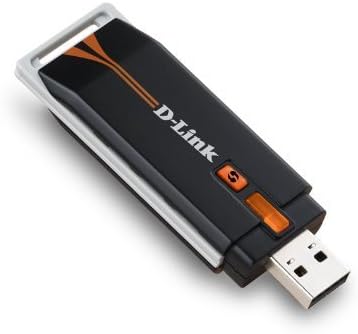
- D-Link Wireless N USB Adapter (DWA-130)
- 라우터용 전원 어댑터
- 이더넷 케이블
- CD-ROM 설정
- 빠른 설치 가이드
품목이 누락되었거나 손상된 경우 판매점에 문의하세요.
3. 설정 지침
3.1. D-Link Wireless N 300 Router (DIR-615) Setup
The D-Link Quick Router Setup Wizard simplifies the configuration process. Follow these steps to set up your router:
- Unpack the router and place it in a central location for optimal wireless coverage.
- 모뎀을 다음에 연결하세요 인터넷 port (yellow) on the back of the DIR-615 router using an Ethernet cable.
- 전원 어댑터를 라우터의 전원 입력 단자에 연결하고 콘센트에 꽂으세요.
- Wait for the power LED on the router to become solid.
- Insert the Setup CD-ROM into your computer's CD/DVD drive and follow the on-screen instructions provided by the D-Link Quick Router Setup Wizard. This wizard will guide you through configuring your Internet connection, wireless network settings, and security.
- Alternatively, you can connect a computer directly to one of the 랜 ports (blue) on the router using an Ethernet cable and access the router's web-based interface by typing
http://dlinkrouterorhttp://192.168.0.1당신의 web 브라우저.


3.2. D-Link Wireless N USB Adapter (DWA-130) Setup
The D-Link Quick Adapter Setup Wizard will guide you through the installation of the DWA-130 USB Adapter. This adapter provides Wireless N connectivity for your computer.
- 설치 CD-ROM을 컴퓨터의 CD/DVD 드라이브에 넣으십시오.
- Follow the on-screen instructions to install the necessary drivers and the Wireless Connection Manager software.
- Once prompted, plug the DWA-130 USB Adapter into an available USB 2.0 port on your desktop or notebook computer.
- For desktop users, a desktop cradle is included to position the adapter for optimal signal reception.
- Use the Wireless Connection Manager to scan for available wireless networks and connect to your newly configured D-Link network.
4. Operating Your Network
4.1. 장치 연결
Once your router is set up, you can connect devices wirelessly or via Ethernet cables. For wireless connections, use the network name (SSID) and password configured during setup. For wired connections, plug an Ethernet cable from your device into any of the blue LAN ports on the router.
4.2. Network Security (WPS)
The DIR-615 router supports Wi-Fi Protected Setup (WPS) for easy and secure wireless connections. Press the WPS button on the router and then activate WPS on your wireless device (e.g., the DWA-130 adapter) within two minutes to establish a secure connection without manually entering a password.
4.3. 서비스 품질(QoS)
The router features QoS prioritization technology. This function analyzes and separates multiple data streams based on their sensitivity to delay, ensuring smoother performance for applications like online gaming and Voice over IP (VoIP) calls across your network.
4.4. 보호자 통제
The DIR-615 router includes parental control features, allowing you to supervise and manage Internet activity on your network. Refer to the router's web-based interface for configuration options to restrict access to certain websites or set time limits for Internet usage.
5. 유지관리
To ensure optimal performance and longevity of your D-Link Wireless-N USB Network Starter Kit, consider the following maintenance tips:
- 펌웨어 업데이트: Periodically check the D-Link support website for firmware updates for your DIR-615 router. Firmware updates can improve performance, add new features, and address security vulnerabilities.
- 물리적 배치: Place the router in an open area, away from obstructions, large metal objects, and devices that emit radio frequency interference (e.g., microwaves, cordless phones).
- 청소: Keep the devices clean and free from dust. Use a soft, dry cloth to wipe the exterior. Do not use liquid cleaners.
- 다시 시작: 네트워크 문제가 발생하면 라우터의 전원 어댑터를 10초간 뽑았다가 다시 꽂아 다시 시작해 보세요.
6. 문제 해결
This section addresses common issues you might encounter with your D-Link Wireless-N USB Network Starter Kit.
- 인터넷에 연결되지 않음:
- 모든 케이블이 라우터와 모뎀에 단단히 연결되어 있는지 확인하십시오.
- 모뎀이 제대로 작동하는지 확인하십시오.
- 모뎀과 라우터를 다시 시작하세요.
- Check the Internet LED on the router; it should be solid or blinking.
- Weak Wireless Signal or Disconnections:
- 라우터를 좀 더 중앙에 가까운 위치로 옮기세요.
- 라우터의 안테나가 수직으로 설치되어 있는지 확인하십시오.
- 다른 전자 장치의 간섭을 최소화하세요.
- Update the drivers for your DWA-130 USB adapter.
- 라우터 설정 페이지에 접속할 수 없습니다.
- 컴퓨터가 이더넷 또는 Wi-Fi를 통해 라우터에 연결되어 있는지 확인하십시오.
- 접속해 보세요
http://dlinkrouterorhttp://192.168.0.1. - 브라우저의 캐시와 쿠키를 삭제하세요.
- Forgotten Wireless Password:
- 라우터에 접근하세요 web-based interface to retrieve or change the password.
- If you cannot access the interface, you may need to perform a factory reset (this will erase all custom settings).
7. 기술 사양
| 특징 | 사양 |
|---|---|
| 모델명 | DKT-408 (Kit), DIR-615 (Router), DWA-130 (USB Adapter) |
| 상표 | 디링크 |
| 연결 기술 | 무선, USB |
| 무선 통신 표준 | 802.11g / n |
| 주파수 대역 클래스 | 싱글 밴드 |
| 특별 기능 | QoS, WPS |
| 제품 치수 | 10.25 x 2.75 x 8.25인치 (키트 포장) |
| 품목 무게 | 1.62파운드(키트) |
| 호환 장치 | Desktop, Notebooks |
| 추천 용도 | 사업, 가정 |
| 운영 체제 | D-Link OS (for router management) |
8. 보증 및 기술 지원
D-Link products are backed by a limited warranty. For specific warranty terms and conditions applicable to your region, please refer to the warranty card included with your product or visit the official D-Link web대지.
For technical assistance, product registration, or to download the latest drivers and firmware, please visit the D-Link support portal. Support resources typically include FAQs, troubleshooting guides, and contact information for technical support representatives.
D-Link Official Web대지: www.dlink.com