
1. 서론
The AmScope MU900-CK is a 9.1-megapixel USB 2.0 digital camera designed for microscopes. It enables users to capture still images, stream live video, and record video. The camera is compatible with Windows XP/Vista/7/8/10 and Mac OS X 10.6 & Up operating systems. The included software provides advanced features such as image stitching, Extended Depth of Focus (EDF), video recording, and measurement functions for Windows users. Mac users can capture still images, record video, and control color and exposure. The package includes two mounting adapters, a reduction lens, and a calibration kit for precise measurements.
2. 패키지 내용
아래 나열된 모든 품목이 패키지에 들어 있는지 확인하세요.
- AmScope MU900-CK 9.1MP USB Digital Camera
- USB 2.0 케이블
- 소프트웨어 설치 CD
- 23mm Mounting Adapter
- 30mm Mounting Adapter
- 30.5mm Mounting Adapter (often integrated or provided as an additional ring)
- Reduction Lens
- Calibration Kit (calibration slide)

이미지 2.1: Contents of the AmScope MU900-CK package, including the camera, USB cable, software disk, mounting adapters, and calibration slide.
3. 설정
3.1. 소프트웨어 설치
Before connecting the camera, install the provided software from the CD or download the latest version from the AmScope website. Follow the on-screen instructions for your operating system (Windows or Mac).
- Windows 사용자: The software for Windows XP/Vista/7/8/10 offers comprehensive features including image editing, processing, stitching, EDF, and measurement functions.
- 맥 사용자: The software for Mac OS X 10.6 & Up allows for still image capture, video recording, and basic control over color and exposure.
3.2. 카메라 장착
- Select the appropriate mounting adapter (23mm, 30mm, 30.5mm, or C-mount) that matches your microscope's eyepiece tube or trinocular port.
- Insert the reduction lens into the camera body if required for your microscope type to achieve a wider field of view.
- Attach the selected adapter to the camera.
- Carefully insert the assembled camera into the microscope's eyepiece tube or trinocular port. Ensure a secure fit.

이미지 3.1: The AmScope MU900-CK camera installed on a stereo microscope, displaying live feed on a laptop.

이미지 3.2: The AmScope MU900-CK camera installed on a compound microscope, displaying live feed on a laptop.
3.3. 컴퓨터에 연결하기
Connect the USB cable from the camera to an available USB 2.0 port on your computer. The operating system should detect the camera after software installation.
4. 사용 설명서
4.1. Launching the Software
After successful installation, launch the AmScope camera software from your desktop shortcut or applications folder.
4.2. 라이브 View and Image Capture
Upon launching, the software will display a live feed from the microscope camera. Adjust the microscope's focus and illumination for a clear image.
- 정지 이미지 캡처: Locate the "Capture" or "Snapshot" button within the software interface to take a still image. Images are typically saved in a designated folder.
- 비디오 녹화: Use the "Record" function to capture live video. Video files are also saved to a specified location.
- 해상도 설정: 사전view and capture resolutions can be set independently. This allows for viewing a high-speed, low-resolution live video while capturing higher-resolution images or video.
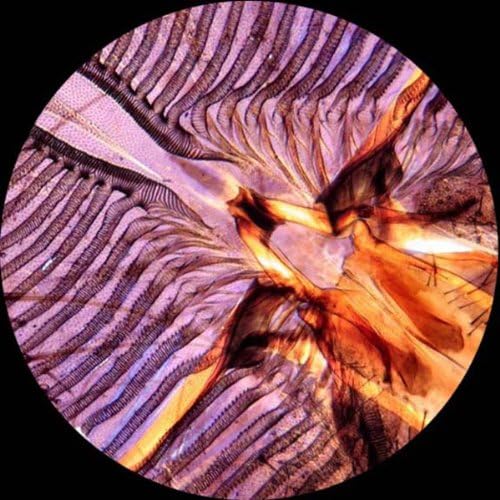
이미지 4.1: Example of a detailed microscopic image captured using the camera.
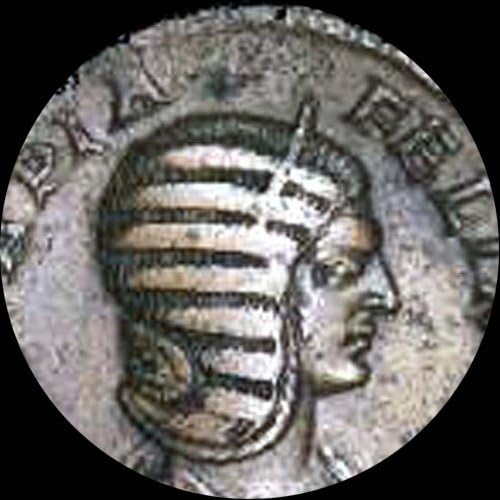
이미지 4.2: Example of a microscopic image of an ancient coin captured using the camera.
4.3. Advanced Features (Windows Software)
The Windows software includes advanced functionalities:
- 스티칭: Combine multiple images to create a wider field of view.
- EDF (Extended Depth of Focus): Merge images taken at different focal planes to create a single image with greater depth of field.
- 측정 기능: Perform precise measurements on captured images.
- 주석: Add notes, shapes, and watermarks to images.
5. 교정
The included calibration kit is essential for accurate measurements. Refer to the software's help documentation for detailed instructions on how to perform calibration. This process typically involves capturing an image of the calibration slide and using the software to define known distances, ensuring precise measurements for future observations.

이미지 5.1: The calibration slide, showing a scale for precise measurement setup.
6. 문제 해결
- 카메라가 감지되지 않았습니다:
- USB 케이블이 카메라와 컴퓨터에 제대로 연결되어 있는지 확인하십시오.
- Verify that the camera drivers and software are correctly installed.
- 다른 USB 포트에 연결해 보십시오.
- 컴퓨터를 다시 시작하세요.
- No Live Image:
- Check if the camera is properly mounted on the microscope.
- Ensure the microscope's light source is active and adjusted.
- Confirm that the correct camera device is selected within the software.
- 이미지 품질이 좋지 않음:
- Adjust the microscope's focus and illumination.
- Clean the camera lens and microscope optics.
- Check software settings for exposure, white balance, and resolution.
7. 사양
| 특징 | 세부 사항 |
|---|---|
| 모델 | MU900-CK |
| 센서 해상도 | 9.1메가픽셀 |
| 인터페이스 | USB 2.0 |
| 호환성 | Windows XP/Vista/7/8/10, Mac OS X 10.6 & Up, Linux |
| Mounting Sizes | 23mm, 30mm, 30.5mm, C-mount |
| Software Features (Windows) | Stitching, EDF, Video Recording, Measurement, Annotations |
| Software Features (Mac) | Still Image Capture, Video Recording, Color/Exposure Control |
| 치수 | 6.69 x 5.91 x 2.36 인치 |
| 무게 | 1.13파운드 |
| 전원 | 유선 전기(USB를 통해) |
8. 보증 및 지원
For warranty information or technical support, please refer to the documentation included with your product or visit the official AmScope website. Contact their customer service for assistance with product operation, troubleshooting, or parts replacement.
AmScope Official Web대지: www.amscope.com