
1. 서론
The SteelSeries Kana Optical Gaming Mouse is engineered for precision and versatility, designed to accommodate all three primary grip styles: palm, claw, and fingertip. This ambidextrous mouse features an ergonomic button layout and size, developed in collaboration with professional gaming teams to ensure consistent performance and accuracy in competitive environments. This manual provides comprehensive instructions for setup, operation, maintenance, and troubleshooting to help you maximize your gaming experience.
2. 패키지 내용
- SteelSeries Kana Optical Gaming Mouse (White)
- Quick Start Guide (integrated into this manual)
3. 제품 오버view
Familiarize yourself with the key components of your SteelSeries Kana mouse:
- 왼쪽 클릭 버튼: 기본 작업 버튼.
- 오른쪽 클릭 버튼: 보조 작업 버튼.
- 스크롤 휠: For scrolling and a clickable middle button. The scroll wheel is illuminated.
- CPI Toggle Button: Located centrally, allows quick switching between sensitivity settings.
- 측면 버튼(x2): One on each side, large and easily accessible for rapid-fire actions. These can be customized or disabled via software.
- 광학 센서: Located on the underside, provides precise tracking.
- USB 커넥터: 마우스를 컴퓨터에 연결하려면.
- 꼬임 케이블: Durable, tangle-free nylon cord.
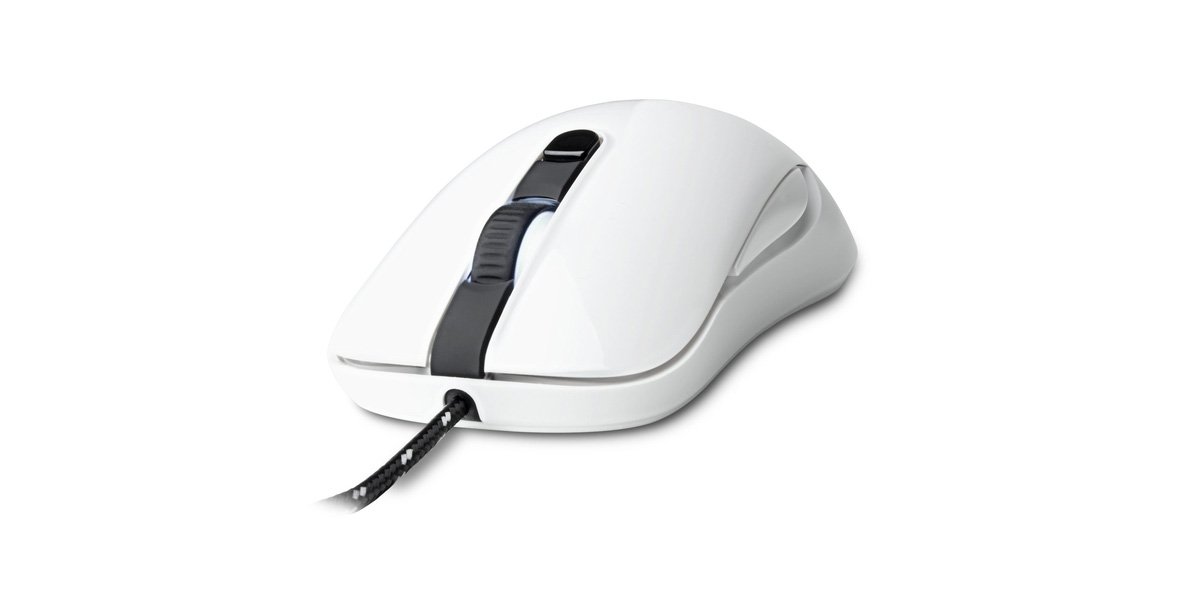
Image of the SteelSeries Kana Optical Gaming Mouse in white, showcasing its ambidextrous design, illuminated scroll wheel, and side buttons.
4. 설정
4.1 하드웨어 연결
- 컴퓨터에서 사용 가능한 USB 포트를 찾습니다.
- Plug the USB connector of the SteelSeries Kana mouse into the USB port.
- Your operating system should automatically detect and install basic drivers for the mouse.
4.2 소프트웨어 설치 (SteelSeries Engine)
To unlock the full customization potential of your SteelSeries Kana mouse, including CPI settings, button programming, macros, and LED intensity, install the SteelSeries Engine software.
- SteelSeries 공식 사이트를 방문하세요 web대지: steelseries.com/engine
- Download the SteelSeries Engine software compatible with your operating system (Windows or macOS).
- 화면의 지시에 따라 설치를 완료하세요.
- Once installed, launch the SteelSeries Engine to configure your mouse settings.
Mac 사용자를 위한 참고 사항: Compatibility with macOS versions 10.9 and later for SteelSeries Engine 2.0 (required for Kana) has historically been inconsistent. Please check the official SteelSeries website for the latest software updates and compatibility information before installation.
5. 사용 설명서
5.1 기본 기능
- 움직임: 마우스를 표면 위로 움직여 화면상의 커서를 조종하세요.
- 클릭: Use the left and right buttons for primary and secondary actions.
- 스크롤링: Rotate the scroll wheel to navigate documents and web pages. Press the scroll wheel for its assigned middle-click function.
5.2 Adjusting CPI (Counts Per Inch)
The centrally located CPI toggle button allows you to switch between two pre-defined sensitivity settings instantly. The default CPI settings are optimized for gaming, but can be customized using the SteelSeries Engine software. The maximum CPI supported is 3200.
- Press the CPI toggle button once to switch to the alternate CPI setting.
- Press it again to revert to the previous setting.
5.3 Customizing with SteelSeries Engine
The SteelSeries Engine software provides extensive customization options:
- CPI Settings: Fine-tune or set custom CPI values beyond the pre-defined options.
- 버튼 프로그래밍: Assign custom functions, keyboard shortcuts, or macros to any of the 6 programmable buttons (including side buttons and scroll wheel click).
- 매크로: Create and assign complex sequences of commands with precise timing control.
- LED Intensity: Adjust the brightness of the illuminated scroll wheel.
- 찬성files: 여러 개의 프로를 생성하고 저장하세요files for different games or applications, with automatic switching based on game triggers.
6. 유지관리
6.1 마우스 청소하기
To ensure optimal performance and longevity, keep your mouse clean.
- 외부: 부드럽고 털이 없는 천을 살짝 사용하세요.amp마우스 표면은 물이나 순한 세척액으로 닦아주세요. 강한 화학 물질이나 연마재는 사용하지 마십시오.
- 광학 센서: Gently clean the optical sensor lens on the underside of the mouse with a dry cotton swab or compressed air to remove dust or debris.
- 마우스 피트: Ensure the mouse feet are clean and free of obstructions for smooth gliding.
주의: Do not immerse the mouse in water or any cleaning solution. Avoid spraying liquids directly onto the mouse.
7. 문제 해결
| 문제 | 가능한 해결책 |
|---|---|
| Mouse not detected / Not responding |
|
| Inaccurate or erratic tracking |
|
| 버튼이 반응하지 않거나 제대로 작동하지 않음 |
|
| SteelSeries Engine software not recognizing mouse (Mac OS) |
|
8. 사양
| 상표 | 스틸시리즈 |
| 모델 번호 | 62029 |
| 색상 | 하얀색 |
| 움직임 감지 기술 | 광학 |
| 버튼의 수 | 6 (프로그래밍 가능) |
| 손의 방향 | Ambidextrous (Left, Right) |
| 하드웨어 플랫폼 | PC |
| 케이블 유형 | 브레이디드 나일론 |
| 품목 무게 | 0.16 킬로그램 |
| 특징 | Ergonomic Design, Illuminated Scroll Wheel |
9. 보증 및 지원
9.1 보증 정보
The SteelSeries Kana Optical Gaming Mouse comes with a 1년 한정 보증 구매일로부터 적용됩니다. 본 보증은 정상적인 사용 조건에서 발생하는 제조상의 결함 및 하자에 한해 적용됩니다. 단, 오용, 사고, 무단 개조 또는 일반적인 마모로 인한 손상은 보증 대상에서 제외됩니다. 보증 청구를 위해 구매 증빙 자료를 보관해 주십시오.
9.2 고객 지원
For technical assistance, warranty claims, or further information, please visit the official SteelSeries support web대지:
FAQ, 드라이버 다운로드 및 고객 서비스 연락처 정보는 해당 웹사이트에서 찾을 수 있습니다. web대지.


