
1. 서론
구매해주셔서 감사합니다asing the Inline USB 3.0 Hub. This 4-port SuperSpeed USB 3.0 hub is designed to expand the connectivity of your computer, allowing you to connect multiple USB devices simultaneously. With its external power adapter, it ensures stable power delivery for all connected peripherals. Please read this manual carefully before using the product to ensure proper operation and to maximize its lifespan.
2. 제품 오버view
2.1 주요 특징
- 장치 유형: Hub - 4 ports
- 포트: 4 x SuperSpeed USB 3.0
- 준수 표준 : USB 3.0(USB 2.0 및 USB 1.1과 역호환 가능)
- 인클로저 유형: 데스크탑
- 색상: 검은색
- 힘: External power adapter included for stable operation
2.2 패키지 내용
- Inline USB 3.0 4-Port Hub
- 초고속 USB 3.0 케이블
- 외부 전원 어댑터
- 사용 설명서 (본 문서)
2.3 제품 다이어그램

그림 1: 앞쪽 View of the USB 3.0 Hub. This image displays the sleek black casing of the hub, highlighting the four SuperSpeed USB 3.0 ports, identifiable by their blue interior, and a small LED indicator light on the top surface.
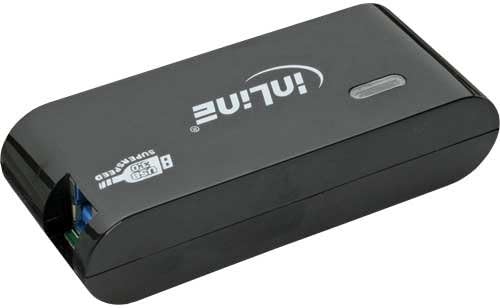
그림 2: 뒤쪽 View of the USB 3.0 Hub. This image shows the back of the hub, featuring the input port for the external power adapter and the upstream USB 3.0 port used to connect the hub to your computer.

그림 3: Product Packaging. This image displays the Inline USB 3.0 Hub enclosed in its transparent retail packaging, showcasing the product as it would appear when purchased.
3. 설정
- 전원 어댑터 연결: Insert the DC plug of the external power adapter into the "DC IN" port on the back of the USB 3.0 Hub. Plug the power adapter into a standard electrical outlet.
- 컴퓨터에 연결: Use the provided SuperSpeed USB 3.0 cable. Connect the Type-B end of the cable to the "USB IN" port on the back of the hub. Connect the Type-A end of the cable to an available USB 3.0 port on your computer. For optimal performance, ensure you connect it to a USB 3.0 port on your computer (usually identified by a blue port or a "SS" symbol).
- 드라이버 설치(플러그 앤 플레이): The Inline USB 3.0 Hub is plug-and-play. Your operating system (Windows, macOS, Linux) should automatically detect and install the necessary drivers. No manual driver installation is typically required.
- 연결 확인: Once connected, the LED indicator light on the hub should illuminate, indicating that the hub is powered and ready for use.
메모: While the hub is backward compatible with USB 2.0 and USB 1.1, connecting it to a USB 2.0 port on your computer will limit the data transfer speed to USB 2.0 speeds.
4. 사용 설명서
- USB 장치 연결: Once the hub is set up and connected to your computer, you can plug your USB devices (e.g., flash drives, external hard drives, keyboards, mice, printers) into any of the four available USB 3.0 ports on the front of the hub.
- 데이터 전송: The hub supports SuperSpeed USB 3.0 data transfer rates up to 5 Gbps, which is significantly faster than USB 2.0 (480 Mbps). This allows for quick transfer of large files.
- 전력 공급 : The external power adapter ensures that the hub can provide sufficient power to all connected devices, including power-hungry devices like external hard drives, without relying solely on your computer's USB port for power.
- 안전한 제거: Always safely eject USB storage devices from your operating system before disconnecting them from the hub to prevent data corruption.
5. 유지관리
- 청소: Disconnect the hub from power and your computer before cleaning. Use a soft, dry, lint-free cloth to wipe the surface of the hub. Do not use liquid cleaners, aerosols, or abrasive solvents.
- 저장: 장기간 사용하지 않을 경우 허브를 직사광선과 극한 온도 변화를 피해 서늘하고 건조한 곳에 보관하십시오.
- 손질: Avoid dropping the hub or subjecting it to strong impacts. Do not attempt to disassemble or modify the hub, as this will void the warranty and could cause damage.
6. 문제 해결
일반적인 문제 및 해결책:
- Hub not recognized by computer:
- Ensure the USB cable is securely connected to both the hub and your computer.
- 허브를 컴퓨터의 다른 USB 포트에 연결해 보십시오.
- Verify that the power adapter is correctly connected and plugged into a working outlet. Check if the LED indicator on the hub is lit.
- 컴퓨터를 다시 시작하세요.
- Devices connected to the hub are not working or are unstable:
- Ensure the external power adapter is connected and providing power to the hub. Some power-hungry devices require the hub to be externally powered.
- Try connecting the device directly to your computer's USB port to confirm it functions correctly.
- Disconnect and reconnect the problematic device from the hub.
- If using multiple power-hungry devices, try reducing the number of devices connected to the hub.
- 데이터 전송 속도가 느림:
- Ensure the hub is connected to a USB 3.0 port on your computer. USB 3.0 ports are often blue or marked with "SS".
- Verify that the device you are connecting also supports USB 3.0.
- The performance can be affected by the quality of the USB cable used. Ensure you are using the provided SuperSpeed USB 3.0 cable.
7. 사양
| 특징 | 설명 |
|---|---|
| 제품 치수 | 7.68 x 6.1 x 3.27인치(19.5 x 15.5 x 8.3cm) |
| 품목 무게 | 11온스(313그램) |
| 모델 번호 | 35394B |
| 상표 | 인라인 |
| 하드웨어 인터페이스 | USB, USB 3.0, USB 2.0, USB 1.1 |
| 포트 수 | 4 |
| 재료 | 구리 |
| 색상 | 검은색 |
| 전원 장치 | 외부 전원 어댑터 |
8. 보증 및 지원
Inline products are designed for reliability and performance. This product comes with a standard manufacturer's warranty. Please refer to the warranty card included in your product packaging for specific terms and conditions, or visit the official Inline web대지 자세한 보증 정보는
For technical support, troubleshooting assistance, or product inquiries, please contact Inline customer service. Contact information can typically be found on the Inline web사이트 또는 제품 포장에 표시되어 있습니다.
온라인 리소스: For the latest drivers, FAQs, and product information, please visit the official Inline web대지.