
1. 서론
The D-Link DHP-1320 Wireless-N PowerLine Router combines wireless networking with PowerLine AV technology, allowing you to extend your network using your home's existing electrical wiring. This device provides both Wi-Fi and wired connectivity for various devices.

Figure 1: D-Link DHP-1320 Wireless-N PowerLine Router
이 이미지는 앞면을 보여줍니다 view of the D-Link DHP-1320 Wireless-N PowerLine Router, highlighting its compact design and external antennas.
주요 특징:
- IEEE 802.11n and 802.11g Compliant for Wi-Fi connectivity.
- Up to 300 Mbps throughput for Wi-Fi networks.
- Up to 200 Mbps throughput for PowerLine AV networks.
- Utilizes your home’s existing electrical wiring for network extension.
- Three 10/100 Mbps Fast Ethernet switch ports for wired connections.
- Supports WPA, WPA2, and WPS security protocols.
2. 설정 및 설치
Follow these steps to set up your D-Link DHP-1320 Wireless-N PowerLine Router.
2.1 패키지 내용
- D-Link DHP-1320 Wireless-N PowerLine Router
- 이더넷 케이블
- 전원 어댑터
- 빠른 설치 가이드 (자세한 지침은 이 설명서를 참조하십시오)
2.2 라우터 연결
- 전원에 연결: Plug the power adapter into the router's AC IN port and then into a standard electrical outlet.
- 인터넷 소스에 연결: Connect an Ethernet cable from your modem or existing router's LAN port to the 인터넷 port (WAN) on the DHP-1320.
- Connect Wired Devices: For wired devices (e.g., computers, gaming consoles), connect an Ethernet cable from the device to any of the three 랜 ports (1, 2, or 3) on the DHP-1320.
- 전원 켜기: 를 누르세요 켜짐/꺼짐 button to power on the router.

그림 2: 후면 패널 연결
This image illustrates the rear panel of the DHP-1320, showing the Internet port, LAN ports, Reset button, USB port, ON/OFF switch, and AC IN port. The AP/RT switch is also visible.
2.3 PowerLine AV Pairing
To establish a secure PowerLine network with other D-Link PowerLine AV adapters, follow these steps:
- Ensure all PowerLine AV devices, including the DHP-1320, are plugged into electrical outlets.
- 위치 PowerLine Sync Connection (ENY) Button on the side of the DHP-1320.
- Press and hold the ENY button on the DHP-1320 for 1-3 seconds. The PowerLine AV LED on the front panel should begin to flash.
- Within two minutes, press and hold the corresponding sync button on your other PowerLine AV adapter for 1-3 seconds.
- The PowerLine AV LEDs on both devices should turn solid, indicating a successful secure connection.

그림 3: 측면 View with PowerLine Sync Button
This image shows the side of the DHP-1320, highlighting the PowerLine Sync Connection (ENY) button, which is used for pairing with other PowerLine AV devices.
2.4 Wi-Fi 구성
The DHP-1320 comes with a default Wi-Fi network name (SSID) and password, usually found on a label on the device.
- To connect to Wi-Fi, search for the default SSID on your wireless device and enter the default password.
- 고급 설정을 하려면 라우터의 설정에 접속하세요. web-based configuration utility by typing its default IP address (e.g., 192.168.0.1) into a web browser. Refer to the Quick Installation Guide for default login credentials.
3. 운영
Understanding the router's indicators and modes of operation.
3.1 LED 표시등
The front panel LEDs provide status information about the router's operation.
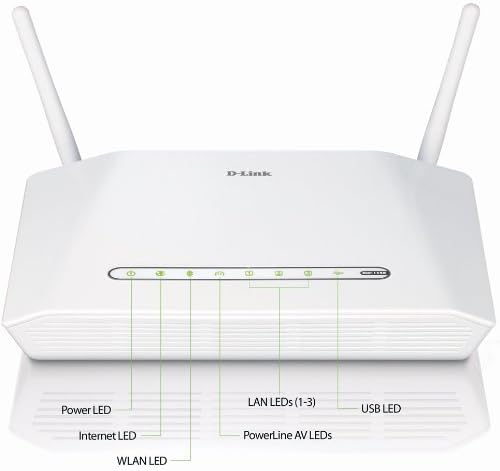
그림 4: 전면 패널 LED 표시등
This image displays the front panel of the DHP-1320, with labels pointing to the Power LED, Internet LED, WLAN LED, LAN LEDs (1-3), PowerLine AV LEDs, and USB LED, indicating their respective statuses.
| 주도의 | 상태 | 설명 |
|---|---|---|
| 힘 | 솔리드 그린 | 장치의 전원이 켜져 있습니다. |
| 인터넷 | 솔리드 그린 | 인터넷에 연결됨. |
| 녹색 깜박임 | Data activity on the Internet port. | |
| 무선랜 | 솔리드 그린 | Wireless network is active. |
| 녹색 깜박임 | Wireless data activity. | |
| 랜(1-3) | 솔리드 그린 | Device connected to corresponding LAN port. |
| 녹색 깜박임 | Data activity on corresponding LAN port. | |
| PowerLine AV | 솔리드 그린 | PowerLine AV network is active and connected. |
| 녹색 깜박임 | PowerLine AV data activity or pairing mode. | |
| USB | 솔리드 그린 | USB device connected and recognized. |
3.2 Router Modes (AP/RT Switch)
The DHP-1320 features an AP/RT switch on its rear panel, allowing you to select its operational mode:
- RT (Router) Mode: In this mode, the DHP-1320 acts as a primary router, providing network address translation (NAT) and DHCP services. Connect your modem to the Internet port.
- AP(액세스 포인트) 모드: In this mode, the DHP-1320 functions as a wireless access point, extending an existing network. Connect it to a LAN port of your main router.
Note: Change the AP/RT switch position only when the device is powered off to prevent potential configuration issues.
4. 유지관리
Proper maintenance ensures optimal performance and longevity of your DHP-1320 router.
4.1 청소
- 청소하기 전에 장치의 전원이 꺼져 있고 플러그가 뽑혀 있는지 확인하십시오.
- 부드럽고 마른 천으로 라우터 외부를 닦으십시오.
- 액체 세척제나 에어로졸 스프레이는 기기를 손상시킬 수 있으므로 사용하지 마십시오.
- 환기구에 먼지나 이물질이 쌓이지 않도록 하십시오.
4.2 펌웨어 업데이트
Periodically check the D-Link support website for firmware updates. Firmware updates can improve performance, add new features, and fix bugs. Refer to the D-Link website for instructions on how to update the firmware.
4.3 라우터 재설정
If you encounter persistent issues or forget your login credentials, you may need to reset the router to its factory default settings.
- 라우터 전원이 켜진 상태에서 다음을 찾으십시오. 다시 놓기 button on the rear panel (refer to Figure 2).
- Use a paperclip or a similar pointed object to press and hold the RESET button for approximately 10 seconds.
- Release the button when the Power LED begins to flash or all LEDs briefly illuminate.
- The router will reboot with factory default settings. You will need to reconfigure your network settings.
5. 문제 해결
This section addresses common issues you might encounter with your DHP-1320 router.
5.1 인터넷 연결 없음
- 케이블 확인: Ensure the Ethernet cable from your modem is securely connected to the DHP-1320's 인터넷 포트.
- 모뎀 상태: 모뎀이 제대로 작동하고 인터넷에 연결되어 있는지 확인하세요.
- 라우터 모드 : Confirm the AP/RT switch is set to RT (Router) mode if the DHP-1320 is your primary router.
- 재부팅 장치: Power cycle your modem, then the DHP-1320, and then your connected devices.
- 인터넷 LED: Check if the Internet LED on the front panel is solid green. If not, there might be an issue with your internet service provider or modem connection.
5.2 Wi-Fi 연결 문제
- WLAN LED: Ensure the WLAN LED is solid or flashing green. If off, Wi-Fi may be disabled.
- SSID 및 비밀번호: 올바른 Wi-Fi 네트워크(SSID)에 연결하고 있는지, 그리고 올바른 비밀번호를 입력하고 있는지 확인하십시오.
- 신호 강도: 라우터에 더 가까이 이동하여 신호 강도에 문제가 있는지 확인해 보세요.
- 간섭: Other wireless devices or appliances can cause interference. Try changing the Wi-Fi channel in the router's settings.
5.3 PowerLine AV Network Not Connecting
- PowerLine AV LED: Check if the PowerLine AV LED on both devices is solid green. If not, they are not paired or connected.
- 전기 콘센트: Ensure both PowerLine devices are plugged directly into wall outlets, not power strips or surge protectors.
- 페어링 프로세스: Re-attempt the PowerLine AV pairing process as described in Section 2.3.
- 전기 회로: PowerLine devices work best when on the same electrical circuit. Large appliances or circuit breakers can affect performance.
5.4 Router Requires Frequent Resets
If your router frequently requires reboots or resets to restore functionality, consider the following:
- 펌웨어: 라우터의 펌웨어가 최신인지 확인하세요.
- 과열: Ensure the router has adequate ventilation and is not placed in an enclosed space.
- 전원 공급 장치: Verify the power adapter is the original D-Link adapter and is functioning correctly.
- 네트워크 부하: Excessive network traffic or too many connected devices might strain the router.
- 공장 초기화 : As a last resort, perform a factory reset (Section 4.3) and reconfigure the settings carefully.
6. 사양
Detailed technical specifications for the D-Link DHP-1320 Wireless-N PowerLine Router.

그림 5: 기술 사양view
이 이미지는 시각적으로 다음을 제공합니다.view of the DHP-1320's technical specifications and a diagram illustrating a typical network setup using PowerLine AV technology.
| 특징 | 설명 |
|---|---|
| 상표 | 디링크 |
| 모델명 | 디피-1320 |
| 무선 표준 | 802.11g/n (Wi-Fi 4) |
| 주파수 대역 | 단일 대역(2.4GHz) |
| Wi-Fi Throughput | 최대 300Mbps |
| PowerLine AV Throughput | 최대 200Mbps |
| 연결 기술 | Wireless, Wired (Ethernet, HomePlug) |
| 이더넷 포트 | 3 x 10/100 Mbps LAN, 1 x 10/100 Mbps WAN (Internet) |
| USB 포트 | 1 x USB (for printer or storage device) |
| 보안 프로토콜 | WPA, WPA2, WPS, 128-bit AES Encryption (PowerLine) |
| 호환 장치 | Gaming Console, Laptop, Personal Computer |
| 추천 용도 | 게임, 가정, 사무실 |
| 운영 체제 | D-Link OS |
| 품목 무게 | 1.02파운드(약 0.46kg) |
| Is Modem Compatible | No (Functions as a router, requires a separate modem) |
| 제조업체 | (주)디링크시스템즈 |
| Model Number (Mfr Part Number) | 디피-1320 |
| UPC/GTIN | 115971261906, 163120603176, 790069339219 |
7. 보증 정보
The D-Link DHP-1320 Wireless-N PowerLine Router comes with a 1년 한정 보증.
For detailed terms and conditions of the warranty, please refer to the warranty card included with your product or visit the official D-Link website. This warranty covers defects in materials and workmanship under normal use.
8. 기술 지원
If you require further assistance or encounter issues not covered in this manual, please contact D-Link Technical Support.
- 온라인 지원: Visit the official D-Link support website for FAQs, troubleshooting guides, firmware downloads, and contact information.
- Web대지: www.dlink.com
Please have your product model number (DHP-1320) and serial number ready when contacting support.