
소개
The ADATA S102PRO is a high-performance USB 3.0 flash drive designed for fast and reliable data storage and transfer. Its durable design and high-speed interface make it ideal for everyday use, allowing you to carry important files, documents, photos, and videos with ease.
설정
Follow these steps to begin using your ADATA S102PRO USB Flash Drive:
- USB 포트 식별: Locate an available USB port on your computer. For optimal performance, use a USB 3.0 port (often colored blue internally). The ADATA S102PRO is backward compatible with USB 2.0 ports, but data transfer speeds will be limited to USB 2.0 rates.
- 캡 제거: Carefully remove the protective cap from the USB flash drive to expose the USB connector.
- 드라이브 삽입: Insert the USB connector firmly into the USB port on your computer. Ensure it is inserted correctly; do not force it.
- 시스템 인식: Your operating system (Windows, macOS, Linux) should automatically detect and install the necessary drivers. A notification may appear indicating that the device is ready for use. The drive will typically appear as a removable disk or volume in your file 탐침.
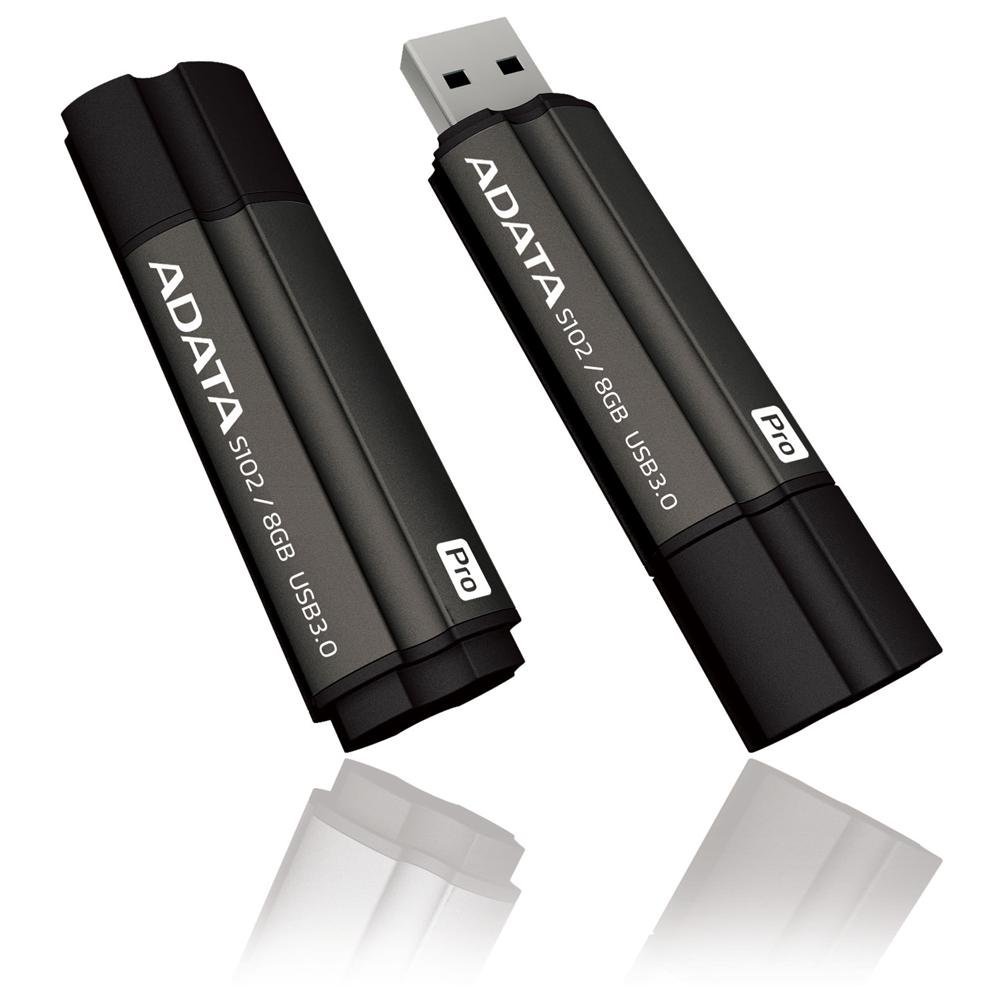
Image: The ADATA S102PRO USB Flash Drive shown with its protective cap on and with the cap removed, revealing the USB 3.0 connector. This illustrates the physical appearance and how to prepare the drive for insertion.
운영
Once the ADATA S102PRO is recognized by your computer, you can begin transferring files:
- 드라이브에 액세스하기:
- 윈도우: Open "This PC" or "My Computer" and locate the drive listed under "Devices and drives" (e.g., "Removable Disk" or a drive letter like E:).
- 맥 OS : The drive icon will appear on your desktop or in the Finder sidebar under "Locations."
- 전송 중 Files:
- 복사하려면 files 에게 the flash drive, drag and drop them from your computer's folders into the flash drive's window.
- 복사하려면 files ~에서 the flash drive, drag and drop them from the flash drive's window to a folder on your computer.
- You can also use the standard copy (Ctrl+C / Command+C) and paste (Ctrl+V / Command+V) functions.
- 드라이브를 안전하게 제거하기: 데이터 손상을 방지하기 위해 플래시 드라이브를 물리적으로 제거하기 전에 안전하게 꺼내는 것이 매우 중요합니다.
- 윈도우: Click the "Safely Remove Hardware and Eject Media" icon in the system tray (bottom-right corner), then select your flash drive and click "Eject." Wait for the "Safe to Remove Hardware" message.
- 맥 OS : Drag the drive icon from the desktop to the Trash, or click the Eject button next to the drive name in the Finder sidebar. Wait for the icon to disappear before removing the drive.
유지
Proper care will help ensure the longevity and reliability of your ADATA S102PRO USB Flash Drive:
- 커넥터를 보호하십시오: Always keep the protective cap on the USB connector when the drive is not in use to prevent dust, dirt, and physical damage.
- 극한의 환경을 피하세요: Do not expose the drive to extreme temperatures, direct sunlight, high humidity, or strong magnetic fields.
- 조심스럽게 다루십시오: 드라이브를 떨어뜨리거나 강한 충격을 가하지 마십시오.
- Do Not Remove During Transfer: Never unplug the drive while data is being read from or written to it. Always follow the safe removal procedure.
- 정기 백업: While flash drives are reliable, it is always recommended to back up critical data to another storage device or cloud service.
문제 해결
If you encounter issues with your ADATA S102PRO, try the following solutions:
- 드라이브가 인식되지 않음:
- 드라이브가 USB 포트에 완전히 삽입되었는지 확인하세요.
- 컴퓨터의 다른 USB 포트를 사용해 보십시오.
- 컴퓨터 자체의 문제인지 확인하기 위해 다른 컴퓨터에서 드라이브를 테스트해 보세요.
- 드라이브가 목록에 나타나지 않더라도 컴퓨터의 장치 관리자(Windows) 또는 시스템 정보(macOS)에서 드라이브가 목록에 있는지 확인하십시오. File 탐험가/탐색가.
- 느린 전송 속도:
- Ensure you are connected to a USB 3.0 port for optimal performance. USB 2.0 ports will limit speeds.
- 많은 작은 것을 전송합니다 file소량의 데이터를 전송하는 것보다 소량의 데이터를 전송하는 것이 더 느릴 수 있습니다. files.
- 시스템 리소스를 사용하거나 디스크 작업을 수행하는 다른 애플리케이션을 종료하십시오.
- 쓸 수 없습니다 Files to Drive:
- 드라이브 용량이 가득 찼는지 확인하고 불필요한 파일을 삭제하세요. file또는 다른 위치로 옮길 수 있습니다.
- 확인하십시오 file system (e.g., FAT32, NTFS, exFAT) is compatible with your operating system and allows writing. If formatted as NTFS on macOS, you may only have read access without third-party software.
- Check for any software-based write protection or permissions issues on your computer.
명세서
| 상표 | 아다타 |
| 모델명 | S102프로 |
| 모델 번호 | AT806-4G-CPK |
| 메모리 저장 용량 | 4GB (XNUMX기가바이트) |
| 하드웨어 인터페이스 | USB 3.0 (USB 2.0과 하위 호환) |
| 제조업체 | A-DATA TECHNOLOGY (USA) CO. L |
| 한국어: | 842243005080 |
| ASIN | B004AVOGW8 |
보증 및 지원
For detailed warranty information, product registration, and technical support, please visit the official ADATA web사이트에서 지원 리소스, FAQ, 고객 서비스 연락처 정보를 찾을 수 있습니다.
ADATA Official Web대지: www.adata.com