
소개
The GIGABYTE GM-M7600 is a wireless precision optical mouse designed for comfortable and reliable use. This manual provides instructions for setting up, operating, maintaining, and troubleshooting your device.
패키지 내용
모든 품목이 들어 있는지 확인하려면 패키지 내용물을 확인하세요.
- GIGABYTE GM-M7600 Wireless Optical Mouse
- Portable Nano USB Receiver
- AAA 배터리 2개
설정
1. 배터리 설치
The GM-M7600 mouse requires two AAA batteries for operation. The batteries are included in the package.
- 마우스 밑면에서 배터리 덮개를 찾으세요.
- 덮개를 살살 밀거나 들어 올려서 수납공간을 여세요.
- AAA 배터리 두 개를 넣을 때, 양극(+)과 음극(-) 단자가 배터리함 안쪽의 표시와 정확히 일치하는지 확인하십시오.
- 배터리 덮개를 단단히 닫으세요.
2. USB 수신기 연결
The mouse connects to your computer via a portable Nano USB receiver.
- Locate the Nano USB receiver. It may be stored inside the mouse's battery compartment or packaged separately.
- Plug the Nano USB receiver into an available USB port on your computer (Laptop or Personal Computer).
- Your operating system (e.g., Windows XP, Linux) should automatically detect and install the necessary drivers. This process may take a few moments.
- 드라이버 설치가 완료되면 마우스를 바로 사용할 수 있습니다.
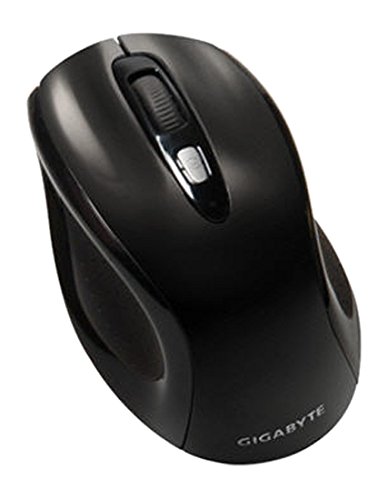
그림 1: GIGABYTE GM-M7600 Wireless Optical Mouse. This image displays the ergonomic design of the mouse, highlighting its form factor and the location of its buttons. The Nano USB receiver is typically stored within the mouse or connected to a computer's USB port.
작동 지침
1. 전원 켜기 / 끄기
The mouse typically has a power switch on its underside. Slide the switch to the 'ON' position to activate the mouse. Slide it to 'OFF' when not in use to conserve battery life.
2. DPI(감도) 조정
The GM-M7600 features an adjustable DPI switch, allowing you to change the mouse sensitivity between 800 DPI and 1600 DPI. This switch is usually located near the scroll wheel. Press the DPI button to toggle between the two sensitivity settings.
3. 기본 마우스 기능
- 좌 클릭: 항목 선택, 열기를 위한 기본 버튼 files, 그리고 소프트웨어와의 상호작용.
- 마우스 오른쪽 버튼으로 클릭: 상황에 맞는 메뉴와 추가 옵션에 접근하기 위한 보조 버튼입니다.
- 스크롤 휠: 문서를 스크롤하는 데 사용됩니다. web 페이지를 가리킬 수도 있고, 마우스 가운데 클릭 버튼으로도 사용할 수 있습니다.
유지
1. 청소
최적의 성능과 외관을 유지하려면:
- Disconnect the mouse from your computer and turn off the power switch.
- 부드럽고 털이 없는 천을 살짝 사용하세요.amp물이나 순한 세척 용액으로 마우스 표면을 닦으세요.
- 강한 화학 물질이나 연마성 세척제를 사용하거나 마우스에 직접 액체를 뿌리지 마세요.
- Clean the optical sensor area on the underside of the mouse with a dry cotton swab to remove any dust or debris.
2. 배터리 교체
When the mouse performance degrades or it stops responding, it may be time to replace the batteries.
- 전원 스위치를 사용하여 마우스를 끄세요.
- Open the battery compartment as described in the 'Installing Batteries' section.
- 오래된 AAA 배터리를 제거하세요.
- 극성(+/-)을 확인하여 AAA 배터리 두 개를 새로 넣으세요.
- 배터리함을 닫고 마우스를 다시 켜세요.
문제 해결
If you encounter issues with your GIGABYTE GM-M7600 mouse, try the following solutions:
- 마우스가 응답하지 않습니다.
- 마우스의 전원이 켜져 있는지 확인하세요.
- 배터리가 올바르게 설치되었고 충전량이 충분한지 확인하세요. 필요하면 교체하세요.
- Ensure the Nano USB receiver is securely plugged into a working USB port on your computer. Try a different USB port.
- 컴퓨터를 다시 시작하세요.
- 커서 움직임이 불규칙적임:
- 마우스 밑면의 광학 센서를 청소하세요.
- 마우스를 적절한 표면에서 사용하고 있는지 확인하세요. 반사율이 높거나 투명한 표면은 피하세요.
- Check for any wireless interference. Move the mouse closer to the receiver or away from other wireless devices.
- DPI switch not working:
- 마우스의 전원이 켜져 있고 연결되어 있는지 확인하세요.
- DPI 버튼을 단단히 누르세요.
명세서
| 모델명 | GM-M7600 |
| 상표 | 기가바이트 |
| 연결 기술 | 2.4GHz Radio Frequency Wireless |
| 움직임 감지 | 광학 |
| 조정 가능한 DPI | 800/1600 DPI |
| 버튼의 수 | 3 (왼쪽, 오른쪽, 마우스 휠/가운데 클릭) |
| 전원 | AAA 배터리 2개(포함) |
| 수신기 유형 | Portable Nano USB Receiver |
| 호환 장치 | 노트북, 개인용 컴퓨터 |
| 운영 체제 지원 | 리눅스, 윈도우 XP |
| 인클로저 재료 | Plastic with Rubberized Finish |
| 색상 | 검은색 |
보증 및 지원
For warranty information and technical support, please refer to the warranty card included with your product or visit the official GIGABYTE web대지. 보증 청구를 위해 구매 영수증을 보관하십시오.