
1. 서론
The ASUS USB-N10 Wireless-N USB Adapter provides a convenient solution for adding or upgrading wireless connectivity to your computer. This compact adapter supports IEEE 802.11b/g/n standards, offering wireless data rates of up to 150Mbps for both transmit and receive functions. It features a fast USB 2.0 interface and includes software-based WPS (Wi-Fi Protected Setup) button support for easy and secure network connections.
2. 주요 특징
- Excellent Connection: Strong and convenient USB connection for fast downloads, rapid file transfers, and low-latency media streaming.
- PSP Xlink Kai Support: Play system games with PSP users worldwide via the internet.
- EZ WPS: Improve Wi-Fi security with easy WPS Wizard.
- 운영 체제 지원 : Compatible with Windows 7 and Mac 10.6 Operating Systems (and newer versions).
- 표준: IEEE 802.11b, IEEE 802.11g, IEEE 802.11n.
- 호스트 인터페이스 : USB 2.0.
- 작동 주파수: 2.4 - 2.5 GHz.
- 안테나: 2x Internal Antenna (MIFA antenna on USB connector).
- 작동 모드: 11 for N. America, 14 Japan, 13 Europe (ETSI).
- 조정: OFDM - BPSK, QPSK, 16-QAM, 64-QAM, DBPSK, DQPSK, CCK.
- 범위: 최대 150m.
- 데이터 속도: 802.11n: Tx - 150Mbps (Max); Rx - 150Mbps (Max), 802.11g: 6, 9, 12, 18, 24, 36, 48, 54Mbps, 802.11b: 1, 2, 5.5, 11Mbps.
- Wireless Setting: Diagnose and configure your wireless network settings with on-line troubleshooting feature.
- WPS Wizard: High-speed wireless network is just a few clicks away.
- 수신기 감도: -84 dBm @11 Mbps, -70 dBm @54 Mbps, -67 dBm @64-QAM, 20MHz channel spacing, -64 dBm @64-QAM, 40MHz channel spacing.
3. 패키지 내용
The ASUS USB-N10 Wireless-N USB Adapter package typically includes:
- ASUS USB-N10 Wireless-N USB Adapter
- 빠른 시작 가이드 / 사용 설명서
- Driver CD or USB Drive (containing necessary software)
4. 설정 및 설치
Follow these steps to install your ASUS USB-N10 Wireless-N USB Adapter:
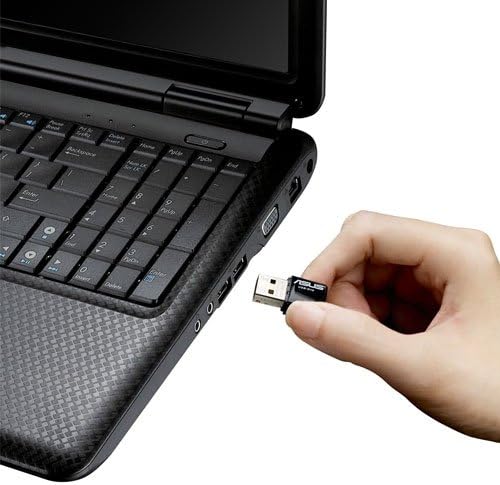
- 어댑터를 삽입합니다: Carefully plug the ASUS USB-N10 adapter into an available USB 2.0 port on your computer. For optimal performance, especially if your computer has USB 3.0 ports, consider using one of those, though the adapter itself is USB 2.0.
- 드라이버 설치:
- Insert the provided driver CD or USB drive into your computer.
- Locate and double-click the 'Setup.exe' file.
- Follow the on-screen instructions to complete the Wi-Fi driver installation. It is recommended to use the manufacturer's drivers for best compatibility and performance.
- Wi-Fi 네트워크에 연결하세요:
- Once the drivers are installed, click on the network icon in your system tray (usually in the bottom-right corner of your screen on Windows, or top-right on Mac).
- 사용 가능한 네트워크 목록에서 원하는 Wi-Fi 네트워크를 선택하세요.
- 메시지가 나타나면 네트워크 보안 키(비밀번호)를 입력하세요.
- '연결'을 클릭하세요. 이제 컴퓨터가 Wi-Fi 네트워크에 연결되었습니다.

5. 어댑터 작동
Once installed and connected, the ASUS USB-N10 adapter operates seamlessly in the background, providing wireless internet access. You can manage your wireless connection through your operating system's network settings.
5.1. WPS(Wi-Fi Protected Setup) 사용
The adapter supports WPS for quick and secure connection to compatible routers. If your router has a WPS button:
- 무선 라우터의 WPS 버튼을 누릅니다.
- Within two minutes, activate the WPS function on your computer. This is typically done through the ASUS utility software installed with the drivers, or via your operating system's network settings.
- The adapter will automatically connect to the router securely.
6. 유지관리 및 관리
- 깨끗하게 유지하십시오: Gently wipe the adapter with a soft, dry cloth to remove dust. Avoid using liquid cleaners.
- 물리적 손상 방지: Handle the adapter with care. Avoid dropping it or exposing it to excessive force, which could damage the USB connector or internal components.
- 최적의 배치: For best signal strength, ensure the adapter is not obstructed by other objects or placed in an area with high electromagnetic interference.
- 드라이버 업데이트 : 정기적으로 ASUS 지원을 확인하세요 web최적의 성능과 최신 운영 체제 버전과의 호환성을 보장하기 위해 업데이트된 드라이버를 제공하는 사이트입니다.
7. 문제 해결
7.1. 무선 연결 없음
- 물리적 연결을 확인하세요. Ensure the USB-N10 adapter is securely plugged into a functioning USB port.
- 드라이버 설치: Verify that the drivers were installed correctly. You can check this in your computer's Device Manager (Windows) or System Information (Mac). Reinstall drivers if necessary.
- Wi-Fi 활성화: Make sure your computer's Wi-Fi is enabled.
- 라우터 상태: Confirm that your wireless router is powered on and broadcasting a Wi-Fi signal.
7.2. 느린 연결 속도
- 신호 강도: Check the signal strength of your Wi-Fi network. Move closer to your wireless router or access point if the signal is weak.
- 간섭: Other electronic devices (microwaves, cordless phones) can cause interference. Try to minimize these or move the adapter away from them.
- USB 포트: Ensure the adapter is connected to a USB 2.0 port. While compatible with USB 1.1, performance will be significantly reduced.
- 라우터 설정: Ensure your router is configured for 802.11n mode for maximum speed.
7.3. 어댑터가 인식되지 않음
- 다른 USB 포트를 사용해 보십시오: 컴퓨터의 다른 USB 포트에 어댑터를 꽂아 테스트해 보세요.
- 컴퓨터를 다시 시작합니다. 간단한 재부팅으로 인식 문제를 해결할 수 있는 경우가 많습니다.
- 드라이버 재설치: Uninstall any existing drivers for the adapter, restart your computer, and then perform a clean installation of the drivers.
8. 사양
| 기인하다 | 값 |
|---|---|
| 제품 치수 | 0.67 x 1.18 x 0.35 인치 |
| 품목 무게 | 2.4 온스 |
| 품목 모델 번호 | USB-N10 |
| 첫 번째 이용 가능 날짜 | 26년 2010월 XNUMX일 |
| 제조업체 | 에이수스 |


9. 보증 및 지원
9.1. 법적 고지사항
실제 데이터 처리량 및 Wi-Fi 커버리지는 네트워크 트래픽 양, 건물 자재 및 구조, 네트워크 오버헤드 등 네트워크 조건 및 환경적 요인에 따라 달라질 수 있으며, 이로 인해 실제 데이터 처리량 및 무선 커버리지가 낮아질 수 있습니다.
9.2. 고객 지원
For technical support, warranty claims, or further assistance, please visit the official ASUS support website or contact their customer service. Refer to the product packaging or the ASUS web최신 연락처 정보와 보증 세부 사항은 사이트에서 확인하세요.