
1. 서론
Thank you for choosing the AOC 931SWL 19-Inch Wide Class LCD Monitor. This manual provides essential information for the safe and efficient use of your new monitor. Please read it thoroughly before installation and operation, and keep it for future reference.
The AOC 931SWL is a 19-inch (18.5-inch viewable image size) widescreen LCD monitor designed for personal computing. It features a 16:9 aspect ratio, 1366 x 768 resolution, a fast 5 ms response time, 200 cd/m2 brightness, and a 10,000:1 dynamic contrast ratio for clear and vibrant images. Connectivity is provided via a VGA port.
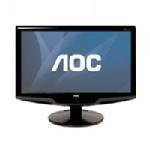
그림 1.1: 앞쪽 view of the AOC 931SWL 19-Inch Wide Class LCD Monitor. This image displays the monitor's sleek design with its widescreen display and stand.
2. 안전 정보
Observe the following safety precautions to ensure optimal performance and prevent damage to the monitor or injury to yourself.
- 전원: 모니터와 함께 제공된 전원 코드와 어댑터만 사용하세요. 접지된 전원 콘센트에 연결하세요.
- 통풍: 통풍구를 막지 마십시오. 모니터 주변에 충분한 공간을 확보하여 공기가 원활하게 흐르도록 하십시오.
- 수분: Do not expose the monitor to rain, moisture, or excessive humidity. Do not place objects filled with liquids on or near the monitor.
- 열: Keep the monitor away from heat sources such as radiators, heat registers, stoves, or other heat-producing appliances.
- 청소: Unplug the monitor from the power outlet before cleaning. Use a soft, dry cloth for cleaning. Avoid liquid or aerosol cleaners.
- 놓기: Place the monitor on a stable, flat surface. Avoid placing it in direct sunlight or near strong electromagnetic fields.
- 서비스: 이 제품을 직접 수리하려고 하지 마십시오. 모든 서비스는 자격을 갖춘 서비스 담당자에게 문의하십시오.
3. 패키지 내용
Please check the package contents upon unpacking. If any items are missing or damaged, contact your retailer or AOC customer support.
- AOC 931SWL 19-Inch Wide Class LCD Monitor
- 전원 코드
- VGA 케이블
- User Manual (this document, or a quick start guide)
- Driver CD (may include digital manual)
4. 설정
4.1 포장 풀기 및 조립
- 포장에서 모니터를 조심스럽게 꺼냅니다.
- 화면에 흠집이 생기는 것을 방지하기 위해 모니터를 부드럽고 깨끗한 표면에 화면이 아래로 향하게 놓으십시오.
- Attach the stand base to the monitor neck/arm according to the instructions provided in the quick start guide (if applicable). Ensure it is securely fastened.
- Carefully lift the monitor and place it upright on a stable desk or table.
4.2 연결 케이블
케이블을 연결하기 전에 모니터와 컴퓨터의 전원이 모두 꺼져 있는지 확인하십시오.
- VGA 케이블을 연결합니다: Locate the VGA port on the back of the monitor and on your computer's graphics card. Connect one end of the VGA cable to the monitor's VGA port and the other end to your computer's VGA port. Tighten the screws on the VGA connectors to secure the connection.
- 전원 코드 연결: Plug one end of the power cord into the monitor's power input port and the other end into a grounded electrical outlet.
4.3 전원 켜기
- 컴퓨터의 전원을 켭니다.
- 모니터 앞면 또는 하단에 있는 전원 버튼을 누르세요. 전원 표시등이 켜질 것입니다.
- The monitor should automatically detect the input signal from your computer. If no image appears, refer to the Troubleshooting section.
5. 사용 설명서
5.1 전원 켜기/끄기
Press the power button located on the front bezel of the monitor to turn it on or off. The power indicator light will show the monitor's status (e.g., green for on, amber for standby).
5.2 온스크린 디스플레이(OSD) 메뉴
The OSD menu allows you to adjust various display settings. The control buttons are typically located on the bottom right or front bezel of the monitor. Common buttons include:
- 메뉴: OSD 메뉴를 엽니다.
- Up/Down (or Left/Right) Arrows: 메뉴 옵션을 탐색하고 값을 조정합니다.
- 입력/선택: 선택을 확인하거나 하위 메뉴로 들어갑니다.
- Exit/Auto: Exits the OSD menu or performs an auto-adjustment for optimal picture settings.
5.3 디스플레이 설정 조정
최적화하려면 viewing experience, you may need to adjust settings such as brightness, contrast, and color balance.
- 를 누르세요 메뉴 OSD를 여는 버튼입니다.
- Use the navigation buttons to select categories like 그림, 색상, 또는 OSD 설정.
- Select specific settings such as 명도, 차이, 색온도, 또는 감마.
- Adjust the values using the navigation buttons.
- 를 누르세요 출구 OSD 메뉴를 닫는 버튼입니다.
- For initial setup, pressing the 자동차 button (if available) can automatically optimize the display settings for the current input signal.
6. 유지관리
6.1 모니터 청소
정기적으로 청소하면 모니터의 외관과 성능을 유지하는 데 도움이 됩니다.
- 청소하기 전에는 항상 모니터의 플러그를 전원 콘센트에서 뽑으세요.
- 부드럽고 털이 없는 천을 살짝 사용하세요.amp물이나 부드럽고 연마성이 없는 화면 세척제로 닦으세요.
- 세척제를 화면에 직접 뿌리지 마세요. 천에 먼저 묻혀 사용하세요.
- 화면을 살살 닦아주세요. 과도한 압력을 가하지 마세요.
- 모니터 c의 경우asing, 부드럽고 마른 천을 사용하세요.
6.2 일반 관리
- 모니터나 케이블 위에 무거운 물건을 올려놓지 마세요.
- Do not expose the monitor to extreme temperatures or rapid temperature changes.
- 장시간 모니터를 사용하지 않을 경우, 전원 콘센트에서 플러그를 뽑아 두세요.
7. 문제 해결
모니터에 문제가 발생하면 고객 지원팀에 문의하기 전에 다음의 일반적인 문제 및 해결 방법을 참조하십시오.
| 문제 | 가능한 원인 | 해결책 |
|---|---|---|
| 화면에 아무것도 표시되지 않음 / 전원 LED 꺼짐 | Monitor not powered on; Power cable loose; No power from outlet. | Press the power button; Check power cable connections; Test the power outlet with another device. |
| No image / Power LED amber | No signal from computer; Incorrect input selected. | Ensure computer is on and not in sleep mode; Check VGA cable connection; Press the 'Auto' button or navigate OSD to select correct input. |
| 이미지가 흐릿하거나 왜곡됩니다. | Incorrect resolution; VGA cable not fully connected; Auto-adjustment needed. | Set computer's display resolution to 1366 x 768; Reconnect VGA cable securely; Perform OSD auto-adjustment. |
| Image is too bright or too dark | 밝기/대비 설정이 올바르지 않습니다. | OSD 메뉴를 통해 밝기와 대비 설정을 조정하세요. |
| 색상이 잘못되었습니다. | Color settings incorrect; Faulty VGA cable. | Adjust Color Temperature or RGB settings via the OSD menu; Try a different VGA cable if available. |
| 제한된 viewing angle distortion | Characteristic of TN panel technology. | Adjust your seating position to be directly in front of the monitor for optimal view주고받음. |
8. 사양
Detailed technical specifications for the AOC 931SWL monitor:
- 상표: 국가
- 모델 번호: 931SWL
- 화면 크기: 19인치(18.5인치) view할 수 있는)
- 해결: 1366 x 768 (XGA Wide)
- 종횡비: 16시 9분
- 대비율: 10,000 : 1 (동적)
- 새로 고침 빈도: 60Hz
- 디스플레이 유형: 액정표시장치
- 명도: 200칸델라/m2
- 응답 시간: 5밀리초
- 연결 기술 : 비디오
- 색상: 검은색
- 품목 무게: 10.8 파운드
- 제조업체: Aoc International
- 한국어: 685417025985
9. 보증 및 지원
보증 정보 및 기술 지원에 대해서는 제품에 동봉된 보증 카드를 참조하거나 AOC 공식 웹사이트를 방문하십시오. web사이트에서 지원 리소스, 드라이버 다운로드, 고객 서비스 연락처 정보를 찾을 수 있습니다.
AOC 관계자 Web대지: www.aoc.com
Please have your monitor's model number (931SWL) and serial number ready when contacting support.