
소개
This manual provides instructions for the StarTech.com 16 ft USB 2.0 Active Extension Cable (model USB2FAAEXT15). This active USB extension cable is designed to extend the reach of your USB 2.0 devices by an additional 16.4 feet (5 meters), ensuring reliable data transfer and power delivery over longer distances. It features a male USB Type-A connector on one end and a female USB Type-A connector on the other, facilitating easy connection between your host computer and USB peripherals.
제품 특징
- Reliably extends the distance of a USB 2.0 device by an additional 15ft (4.5m).
- Connects printers, scanners, or other USB devices that are beyond the reach of standard USB cables.
- Powered directly from the USB port, eliminating the need for an external power adapter.
- Supports cascading up to 5 active repeater cables to extend the connection distance up to 75ft (22.5m) without loss in transfer speed.
- Maintains signal integrity along the entire cable length, ensuring data transfer rates of up to 480 Mbits/sec.
- Plug-and-play compatible for easy setup.
- Backwards compatible with USB 1.1 devices.
- Works with both PCs and Macs.
패키지 내용
- 1 x StarTech.com 16 ft USB 2.0 Active Extension Cable (USB2FAAEXT15)
설정 및 설치
- 커넥터 식별: Locate the male USB Type-A connector and the female USB Type-A connector on the extension cable.
- 호스트에 연결: Plug the male USB Type-A connector of the active extension cable into an available USB port on your computer or host device.
- 장치 연결: Plug the USB Type-A connector of your peripheral device (e.g., printer, scanner, webcam) into the female USB Type-A port of the active extension cable.
- 연결 확인: Your operating system should automatically detect the connected device. No additional drivers are typically required for standard USB devices.
- Cascading (Optional): For extended distances beyond 16.4 feet, you can connect up to five (5) StarTech.com active extension cables in a series. Connect the male end of one cable to the female end of another, and so on, ensuring the final female end connects to your USB device.

Figure 1: StarTech.com 16 ft USB 2.0 Active Extension Cable, coiled, showing both male and female connectors.

Figure 2: Close-up of the male USB Type-A connector of the extension cable, which connects to the host device.
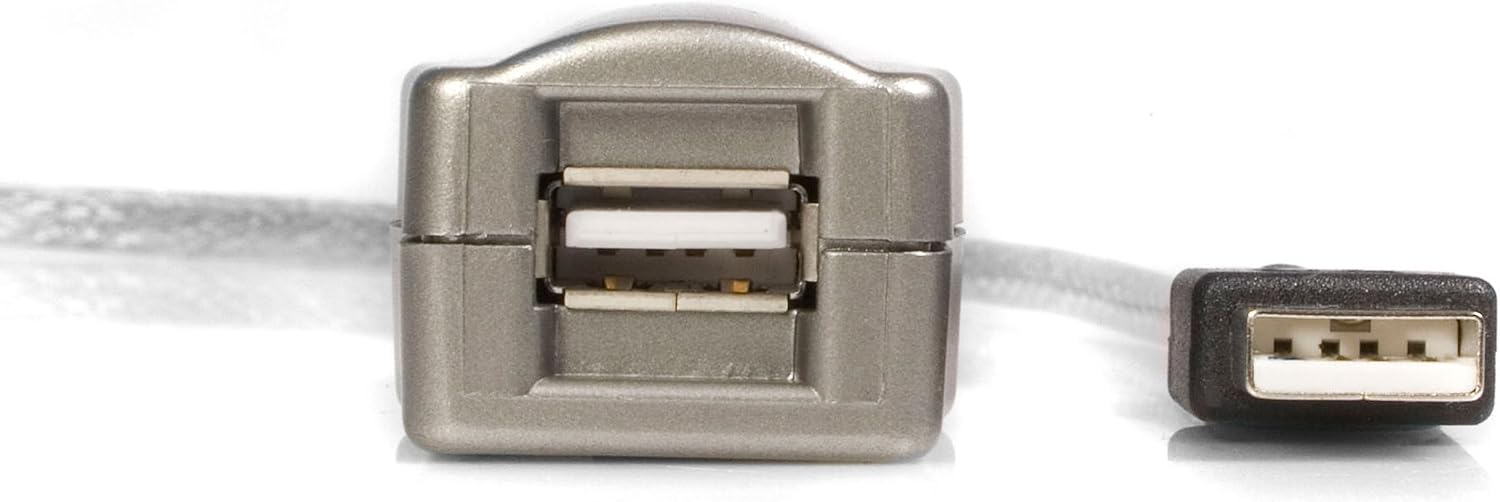
Figure 3: Close-up of the female USB Type-A connector of the extension cable, where the peripheral device connects.
작동 지침
Once the cable is properly connected, the active extension cable functions transparently. Your connected USB 2.0 device will operate as if it were directly connected to your computer's USB port. Data transfer and power delivery will be managed by the active circuitry within the cable to maintain signal integrity over the extended distance.
- Ensure all connections are secure to prevent intermittent disconnections.
- The cable is bus-powered, drawing power directly from the host USB port. No external power source is typically required for most USB 2.0 devices.
- The maximum data transfer rate supported is 480 Mbps (USB 2.0 Hi-Speed).
유지
To ensure the longevity and optimal performance of your StarTech.com USB 2.0 Active Extension Cable, follow these simple maintenance guidelines:
- 저장: When not in use, coil the cable loosely to prevent kinks or damage. Avoid sharp bends.
- 청소: 부드럽고 마른 천으로 케이블과 커넥터를 닦으십시오. 액체 세척제나 용제를 사용하지 마십시오.
- 손질: Always grasp the connector ends when plugging or unplugging the cable. Avoid pulling on the cable itself, as this can damage internal wiring.
- 환경: Store and use the cable in a dry environment, away from extreme temperatures and direct sunlight. The cable is rated for both indoor and outdoor usage, but prolonged exposure to harsh outdoor elements should be avoided.
문제 해결
If you encounter issues with your USB 2.0 Active Extension Cable, consider the following troubleshooting steps:
- 인식되지 않는 장치:
- 연장 케이블의 양쪽 끝이 단단히 연결되어 있는지 확인하십시오.
- Try connecting the USB device directly to the computer's USB port to confirm the device itself is functional.
- Test the extension cable with a different USB device.
- If using multiple cascaded cables, try reducing the number of cables to isolate the issue.
- Connect the male end of the extension cable to a different USB port on your computer.
- 느린 데이터 전송:
- Verify that both the host port and the connected device support USB 2.0 speeds.
- Ensure no other high-bandwidth USB devices are connected to the same USB hub or controller.
- If cascading cables, ensure you are within the recommended limit of 5 cables. Exceeding this limit may degrade performance.
- 간헐적인 연결:
- 케이블이나 커넥터에 물리적인 손상이 있는지 확인하세요.
- 케이블이 지나치게 구부러지거나 늘어지지 않도록 주의하세요.
- Avoid electromagnetic interference (EMI) by keeping the cable away from power cords, fluorescent lights, and other sources of electrical noise.
명세서
| 기인하다 | 값 |
|---|---|
| 상표 | StarTech.com |
| 모델명 | 15 ft USB 2.0 Active Extension Cable - M/F (USB2FAAEXT15) |
| 커넥터 유형 | USB Type A (Male) to USB Type A (Female) |
| 케이블 유형 | USB 2.0 활성 연장 케이블 |
| 케이블 길이 | 16.4 피트 (5 미터) |
| 데이터 전송 속도 | Up to 480 Megabits Per Second (USB 2.0 Hi-Speed) |
| 전원 | Bus Powered (no external power adapter required) |
| Cascading Limit | Up to 5 active cables for a total of 75ft (22.5m) |
| 호환 장치 | Camera, Printer, Scanner, Storage Device, and other USB 2.0 peripherals |
| 호환성 | Backwards compatible with USB 1.1 devices; Works with PCs and Macs |
| 색상 | 스페이스 그레이 |
| 겉감 소재 | 폴리염화비닐 |
| 제품 치수 | 180 x 1.2 x 0.9 인치 |
| 품목 무게 | 5.4 온스 |
| 실내/실외 사용 | 실내, 실외 |
| 한국어: | 065030810500 |
보증 및 지원
이 StarTech.com 제품은 다음의 보증을 받습니다. 평생 보증. For technical support, product information, or warranty claims, please visit the official StarTech.com web해당 웹사이트를 방문하거나 고객 서비스 센터에 직접 문의하십시오. 보증 적용을 위해 구매 영수증을 보관하십시오.
For additional resources and product details, you may visit the 아마존 상품 페이지.