
1. 제품 오버view
The D-Link DES-1008D is an 8-port Fast Ethernet unmanaged desktop switch designed to expand network connectivity for small workgroups. This device allows for flexible connection of Ethernet and Fast Ethernet devices, automatically detecting network speed and negotiating between 10BASE-T and 100BASE-TX, as well as full and half-duplex modes. Its plug-and-play design ensures simple operation without complex configuration.

Figure 1: D-Link DES-1008D 8-Port Fast Ethernet Unmanaged Desktop Switch (Silver/Blue model).
주요 특징은 다음과 같습니다.
- 8 10/100 Mbps auto-sensing ports for flexible network integration.
- Unmanaged design for simple plug-and-play installation.
- Automatic MDI/MDIX crossover for all ports, eliminating the need for crossover cables.
- Fanless operation for silent performance.
2. 패키지 내용
패키지에 다음 품목이 포함되어 있는지 확인하십시오.
- D-Link DES-1008D 8포트 패스트 이더넷 언매니지드 데스크탑 스위치
- 전원 어댑터
- Quick Install Guide and Documentation
If any of the above items are missing or damaged, please contact your local D-Link reseller for assistance.
3. 설정 지침
The DES-1008D switch is designed for easy installation. Follow these steps to set up your device:
- 놓기: Place the switch on a flat, stable surface or mount it to a wall. Ensure adequate ventilation around the device.
- 전원 연결: Connect the provided power adapter to the power input port on the switch and then plug the adapter into a standard electrical outlet. The Power LED on the switch should illuminate.
- 네트워크 장치 연결: Connect your network devices (e.g., computers, printers, network-attached storage, routers) to any of the 8 Fast Ethernet ports on the switch using standard Ethernet cables. The Link/Act LED for each connected port should illuminate, indicating an active connection.
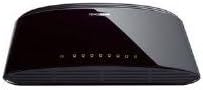
그림 2: 후면 view of the D-Link DES-1008D (Black model) showing Ethernet ports and power input.
The switch will automatically detect the speed and duplex mode of the connected devices. No further configuration is required for basic operation.
4. 사용 설명서
The D-Link DES-1008D is an unmanaged switch, meaning it operates automatically without user configuration. Once powered on and devices are connected, it functions as a central hub for your network traffic.
LED 표시등:
이 스위치는 상태 정보를 제공하는 LED 표시등을 갖추고 있습니다.
- 전원 LED: 스위치에 전원이 공급되면 불이 켜집니다.
- 링크/동작 LED(포트당):
- 솔리드 그린: Indicates a valid network connection at 100 Mbps.
- 호박색: Indicates a valid network connection at 10 Mbps.
- 섬광: Indicates network activity (data transmission or reception) on that port.
- 끄다: No device is connected, or the connected device is powered off.
데이터 전송:
The switch facilitates data transfer between connected devices. Each port supports auto-negotiation for speed (10/100 Mbps) and duplex mode (full/half-duplex), ensuring optimal performance for each connection. In full-duplex mode, a workstation can achieve up to 200 Mbps data transfer rate.
5. 유지관리
To ensure optimal performance and longevity of your D-Link DES-1008D switch, consider the following maintenance guidelines:
- 환경: Operate the switch within its specified temperature range (up to 40°C). Avoid placing it in direct sunlight or near heat sources.
- 통풍: Ensure that the ventilation openings on the switch are not blocked. Proper airflow is crucial for heat dissipation.
- 청소: 스위치를 깨끗하게 유지하고 먼지가 쌓이지 않도록 하십시오. 부드럽고 마른 천으로 닦으십시오. 액체 또는 에어로졸 세척제는 사용하지 마십시오.
- 전원 공급 장치: Use only the power adapter supplied with the device. Using an incorrect power adapter may damage the switch and void the warranty.
- 케이블 관리 : 네트워크 케이블을 정리하여 포트에 무리가 가지 않도록 하고 깔끔한 환경을 유지하세요.
6. 문제 해결
If you encounter issues with your D-Link DES-1008D switch, refer to the following troubleshooting tips:
- 전원 LED 없음:
- 전원 어댑터가 스위치와 작동하는 전기 콘센트에 안전하게 연결되어 있는지 확인하세요.
- 다른 장치를 연결해 전기 콘센트가 작동하는지 확인하세요.
- 연결된 장치에 링크/액티브 LED가 켜지지 않음:
- 이더넷 케이블이 스위치 포트와 네트워크 장치에 제대로 연결되어 있는지 확인하십시오.
- 연결된 네트워크 장치의 전원이 켜져 있고 올바르게 작동하는지 확인하세요.
- 다른 이더넷 케이블을 사용해 보세요.
- 스위치의 다른 포트에 연결해보세요.
- Verify that the cable length does not exceed the maximum recommended length for Ethernet (100 meters).
- 네트워크 성능 저하:
- Ensure all connected devices are operating at their optimal speed. The Link/Act LED color indicates the connection speed (Green for 100 Mbps, Amber for 10 Mbps).
- Check for excessive network traffic or bandwidth-intensive applications on your network.
- Verify that your network cables are not damaged.
- 간헐적인 연결:
- 느슨한 케이블 연결을 확인하십시오.
- Ensure the switch is placed in an area with good ventilation to prevent overheating.
- 다양한 케이블과 장치로 테스트하여 문제를 분리하세요.
If problems persist after following these steps, contact D-Link technical support for further assistance.
7. 사양
| 특징 | 세부 사항 |
|---|---|
| 모델 번호 | DES-1008D |
| 포트 수 | 8 |
| 인터페이스 유형 | RJ45 |
| 데이터 전송 속도 | 10/100 메가비트/초(Mbps) |
| 스위칭 용량 | 1.6Gbps (비 차단) |
| 표준 | IEEE 802.3 10BASE-T Ethernet, IEEE 802.3u 100BASE-TX Fast Ethernet, IEEE 802.3x Flow Control |
| 자동 MDI/MDIX | 모든 포트에서 지원됨 |
| 전원 입력 | 230 Volts (AC) (via external power adapter) |
| 전력 소비 | Low power consumption (fanless design) |
| 치수(길이 x 너비 x 높이) | 약 6.5인치 x 4.41인치 x 1.42인치 (165mm x 112mm x 36mm) |
| 품목 무게 | 8.9온스(252그램) |
| 케이스 소재 | 플라스틱 |
| 작동 온도 | 0°C ~ 40°C(32°F ~ 104°F) |
| 보관 온도 | -10°C ~ 70°C(14°F ~ 158°F) |
| 작동 습도 | 10% ~ 90% 비응축 |
| 인증 | FCC Class B, CE Class B, VCCI Class B, C-Tick, RoHS |
8. 보증 및 지원
The D-Link DES-1008D switch comes with a limited 2-year warranty. For specific terms and conditions, please refer to the warranty documentation included with your product or visit the official D-Link web대지.
For technical support, product registration, or to download the latest firmware and documentation, please visit the D-Link support portal:
When contacting support, please have your product model number (DES-1008D) and serial number ready.