
소개
This manual provides comprehensive instructions for the D-Link DCS-900 10/100TX Home Security Internet Camera. The DCS-900 is designed as an inexpensive remote monitoring solution, combining video surveillance with Fast Ethernet reliability. It features a built-in web server, allowing direct streaming of images to the internet without requiring a dedicated PC. Users can remotely access the camera via any web IP 주소를 입력하여 브라우저.
주요 특징은 다음과 같습니다.
- Compact design with an integrated web 섬기는 사람.
- 할 수 있는 능력 view up to 4 cameras on a single screen.
- Web-based remote access using any Java-enabled browser.
- Functionality to archive and record streaming video directly to a hard drive.
- Bundled software for multi-camera monitoring and management.
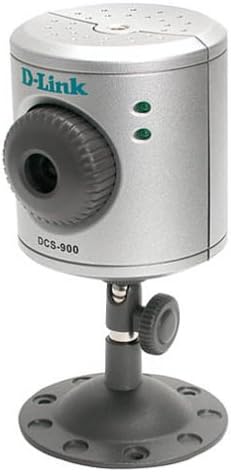
그림 1: The D-Link DCS-900 Internet Camera, a compact silver cylindrical device mounted on an adjustable black stand. The front features a camera lens with a textured adjustment ring, and two green indicator lights. The D-Link logo and "DCS-900" model number are visible on the front.
설정 및 설치
The D-Link DCS-900 is designed for quick and easy integration into your existing Fast Ethernet network.
- 물리적 연결: Connect the camera to your network router or switch using an Ethernet cable. Ensure the camera is powered on using the provided AC/DC adapter.
- 초기 구성: The camera typically uses a default IP address or obtains one via DHCP. A setup wizard is included to guide you through the initial configuration process. This wizard helps in assigning a static IP address if required, or confirming the dynamically assigned one.
- Web-Based Access: Once connected and powered, open a web browser on a computer connected to the same network. Enter the camera's IP address into the browser's address bar. This will open the camera's web-based interface for further management and configuration.
- 소프트웨어 설치: Install the included Windows-based software, such as IPView SE. This software provides enhanced features for multi-camera monitoring and management, including video capture and motion detection capabilities.
- 설치: The camera comes with sturdy mounting hardware suitable for use as a table stand or for screwing into a wall. It can also be mounted on a standard tripod. Ensure the camera is positioned to cover the desired surveillance area.
메모: D-Link recommends consulting the detailed setup guide provided with the product for specific network configurations, especially when integrating with DSL modems, firewalls, or routers.
작동 지침
The D-Link DCS-900 offers various operational modes and settings for effective surveillance.
- 원격 접속: Access the camera remotely from any location with internet access by typing its IP address into a web 브라우저. NS web-based interface allows for real-time viewing and configuration adjustments.
- Multi-Camera Monitoring: The included software, such as IPView SE, allows you to monitor up to four cameras simultaneously on a single screen. This feature is useful for comprehensive surveillance setups.
- Video Archiving and Recording: Utilize the bundled software to archive and record streaming video directly to your computer's hard drive. This enables review of past footage.
- Image Settings Adjustment: 를 통해 web interface or bundled software, you can adjust various image parameters:
- 해결: Adjust video capture resolution (e.g., 320x240 to 640x480 pixels).
- Compression Rate: Optimize video quality versus file 크기.
- 프레임 속도: Control the smoothness of video playback (e.g., 1 frame per second for low bandwidth, higher for smoother motion).
- Brightness, Contrast, Saturation: Fine-tune image appearance.
- 가벼운 주파수 : Adjust for different lighting environments.
- 동작 감지: IPView SE software provides motion detection capabilities, allowing the camera to trigger recordings or alerts when movement is detected within its field of view.
유지
Regular maintenance ensures optimal performance and longevity of your D-Link DCS-900 camera.
- 펌웨어 업데이트: Periodically check the D-Link support website for firmware updates. Updating the firmware can improve performance, add new features, and resolve known issues. Instructions for updating firmware are typically provided with the update package.
- 청소: Gently clean the camera lens and exterior casing with a soft, dry cloth. Avoid using abrasive cleaners or solvents that could damage the camera's surfaces. Ensure the lens is free from dust and smudges for clear image quality.
- 환경 조건: Ensure the camera is operated within its specified environmental conditions (temperature, humidity) to prevent damage. Avoid exposing the camera to extreme temperatures or direct moisture.
문제 해결
This section addresses common issues you might encounter with your D-Link DCS-900 camera.
- Camera Not Accessible via Web 브라우저:
- Verify the camera is powered on and connected to the network.
- Ensure your computer is on the same network segment as the camera.
- Confirm the camera's IP address is correct. If using DHCP, check your router's client list.
- Check firewall settings on your computer and network router; they might be blocking access.
- If accessing from the internet, ensure port forwarding is correctly configured on your router for the camera's port.
- Poor Image Quality / Low Light Performance:
- Adjust brightness, contrast, and saturation settings in the camera's web 인터페이스.
- 렌즈가 깨끗하고 방해물이 없는지 확인하세요.
- The DCS-900 may struggle in very low light conditions. Consider adding external illumination for night view필요하다면.
- Slow Browser Interface / Configuration Timeouts:
- 귀하의 것을 확인하십시오 web 브라우저가 최신 버전인지 확인합니다.
- 브라우저의 캐시와 쿠키를 지워보세요.
- A stable network connection is crucial. Check for network congestion.
- If issues persist, try a different web 브라우저.
- Recording Function Not Working:
- Verify that the bundled software (e.g., IPView SE) is correctly installed and configured for recording.
- Ensure there is sufficient disk space on your computer for storing recordings.
- Check motion detection settings if recording is triggered by motion.
- 펌웨어 업데이트 문제:
- Follow the firmware update instructions precisely.
- 펌웨어 업데이트 중에는 기기의 전원을 끄지 마십시오.
- If an update fails, consult D-Link support for recovery procedures.
명세서
| 특징 | 세부 사항 |
|---|---|
| 모델 번호 | DCS-900 |
| 상표 | 디링크 |
| 연결 기술 | 유선(이더넷) |
| 비디오 캡처 해상도 | 최대 640 x 480픽셀 |
| 비디오 캡처 형식 | MPEG-4 |
| 채널 수 | Supports monitoring up to 4 cameras |
| 전원 | AC/DC 어댑터 |
| 품목 치수(L x W x H) | 4 x 7 x 3 인치 |
| 품목 무게 | 0.01 온스 |
| 장착 유형 | Ceiling Mount, Table Stand, Tripod |
| 제어 방법 | 원격 (Web-based interface) |
| 추천 용도 | Surveillance (Home, Office, Classroom, Kitchen, Living Room) |
보증 정보
Specific warranty details for the D-Link DCS-900 Internet Camera are typically provided with the product packaging or on the official D-Link website. Please refer to the documentation included with your purchase or visit the D-Link support portal for the most current and accurate warranty terms and conditions.
고객 지원
For further assistance, technical support, or to access additional resources, please contact D-Link customer support.
- 온라인 지원: Visit the official D-Link support website for FAQs, troubleshooting guides, driver downloads, and firmware updates.
- 전화 지원: Contact D-Link's technical support hotline during business hours for direct assistance. Refer to the D-Link web지역 연락처 사이트.